Credentials
Overview
Credentials in Pupau are encrypted, secure storage for authentication information used by your agents, pipelines, and knowledge bases. Instead of hardcoding sensitive information, you can store credentials once and reference them across multiple tools and configurations.
The credentials system provides multiple types of authentication methods, scope-based access control, and token management for OAuth credentials. See Token Management for details on OAuth token refresh behavior.
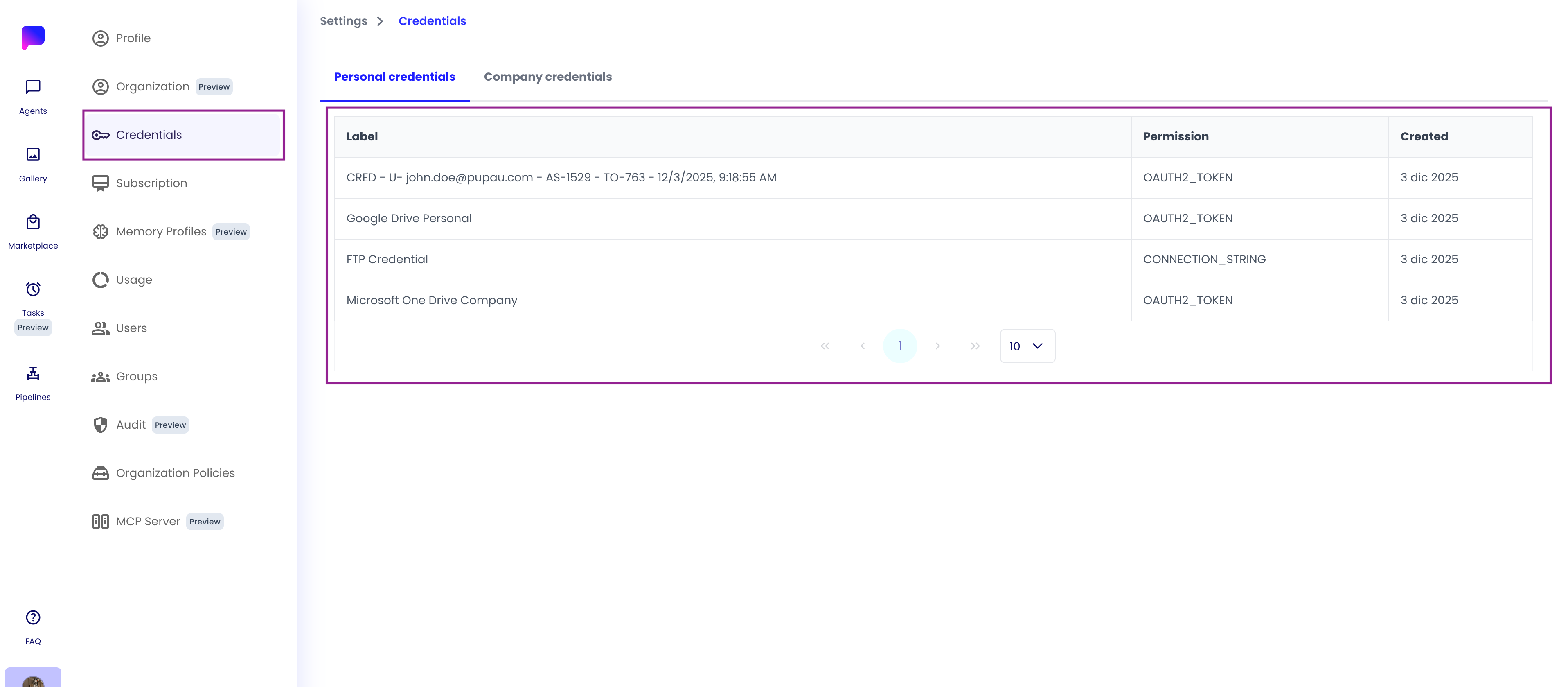
Credential Types
Pupau supports four types of credentials for storing authentication information. Each credential type is designed for specific authentication scenarios and services.
Username and Password
Store traditional username/password combinations for database connections and email server authentication.
OAuth2 Token
Store OAuth2 tokens for cloud storage services. Visual indicators show when authentication expires and needs refresh.
API Key
Store API keys for authenticating with external services.
Connection String
Store connection credentials as a structured connection string containing server details and authentication information.
Quick Reference
| Credential Type | Primary Use Case | Where Used | Data Format | Refreshable | Supported Services |
|---|---|---|---|---|---|
| Username/Password | Database & Email authentication | Database Tool, SMTP Tool, Database Pipeline Actors | Username + Password | No | PostgreSQL, MySQL, MSSQL (SQL Server), SMTP servers |
| OAuth2 Token | Cloud storage access | Knowledge Bases (Google Drive, OneDrive) | OAuth tokens | Yes (Google Drive only) | Google Drive (auto-refresh), OneDrive (manual refresh) |
| API Key | P.A.N.D.A Tool authentication | P.A.N.D.A Tool | API key string | No | P.A.N.D.A tools |
| Connection String | Server access | Knowledge Bases (FTP servers) | Host + Port + Username + Password | No | FTP servers for knowledge base data sources |
Encryption Scopes
Credentials are encrypted with scope-based access control, determining who can access and decrypt the credential:
Personal vs Organization Scopes Comparison
| Feature | Personal Scope (USER) | Organization Scope (COMPANY) |
|---|---|---|
| Access | Only the user who created it | All users in the company |
| Visibility | "Personal Credentials" tab | "Company Credentials" tab |
| Encryption | User-specific encryption key | Company-specific encryption key |
| Permissions | Any user can create | Requires company admin permissions |
| Use Case | Personal credentials, user-specific integrations | Shared company resources, team integrations |
| Examples | Personal Google Drive, personal OneDrive, personal API keys, personal database credentials | Shared Google Drive, shared OneDrive, company FTP server (knowledge base), shared database credentials |
| Ideal For | Individual user's Google Drive/OneDrive connections, personal tool configurations | Shared Google Drive/OneDrive accounts used by the team, company-wide knowledge base data sources |
Note: Scope cannot be changed after credential creation. Choose carefully based on whether the credential should be personal or shared with your organization.
Security Features
Encryption
All credentials are encrypted at rest using industry-standard encryption methods. Each scope (Personal or Organization) uses separate encryption keys, ensuring that credentials are isolated and secure.
Data Protection
- Credential values are never exposed in the user interface or API responses
- Only metadata (label, type, scope) is visible - never the actual passwords, keys, or tokens
Token Management
OAuth credentials require token management to maintain access. The behavior differs by provider:
Google Drive:
- OAuth tokens automatically refresh when expired, ensuring continuous access without user intervention
- Automatic refresh happens in the background when the credential is used
- Manual refresh may still be required if the credential becomes invalid or if automatic refresh fails
- See Manual Refresh and Expired Credentials for instructions on manual refresh
OneDrive:
- Manual token refresh is required when tokens expire (automatic refresh is not currently supported)
- You'll see visual indicators when a OneDrive credential expires
- See Manual Refresh and Expired Credentials for step-by-step refresh instructions
Visual Indicators:
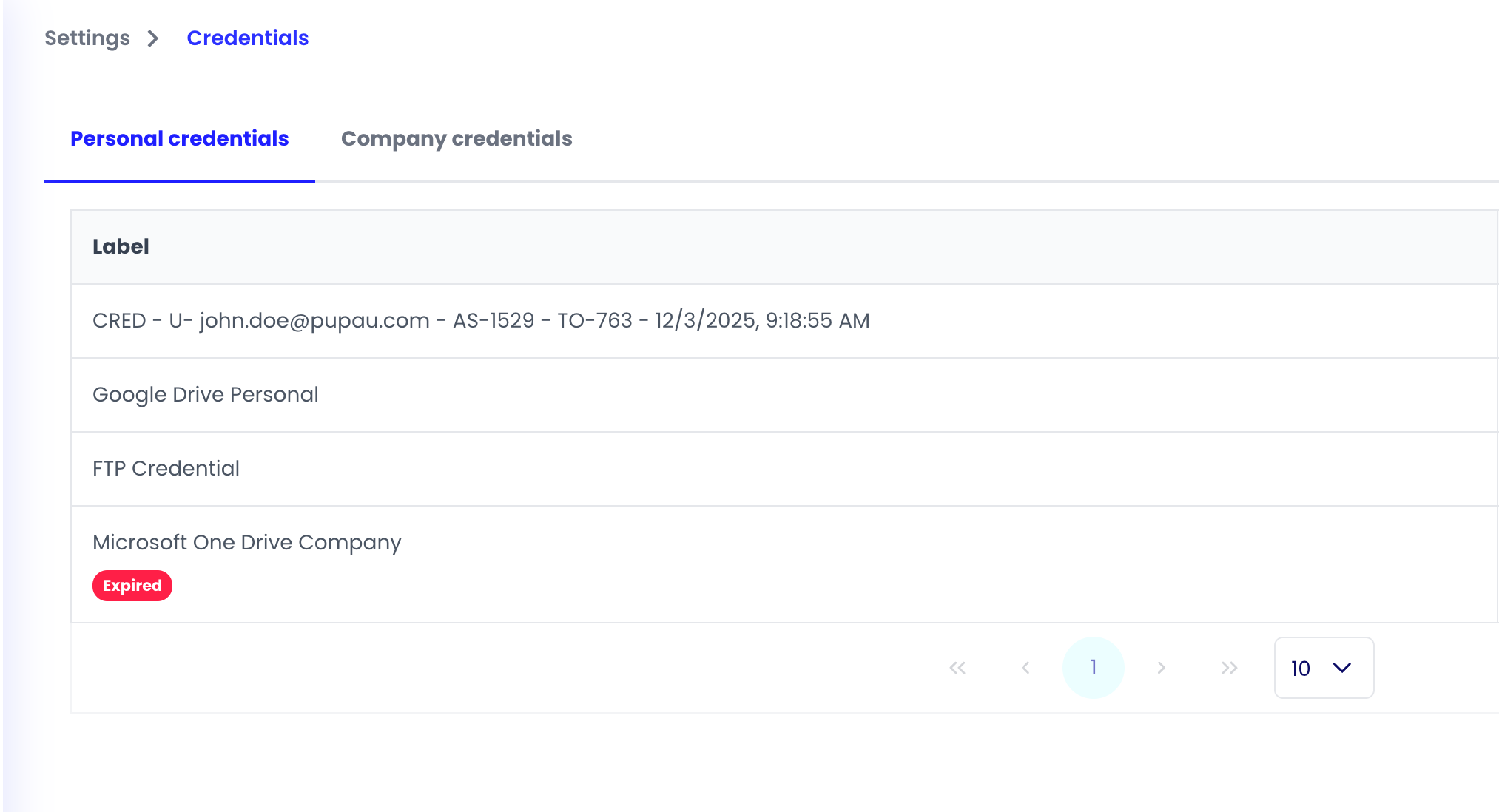
- Expired or invalid OAuth credentials are clearly marked with warning badges and indicators on the credentials page and credential detail page
- Status indicators help you identify which credentials need attention
Where Credentials Are Used
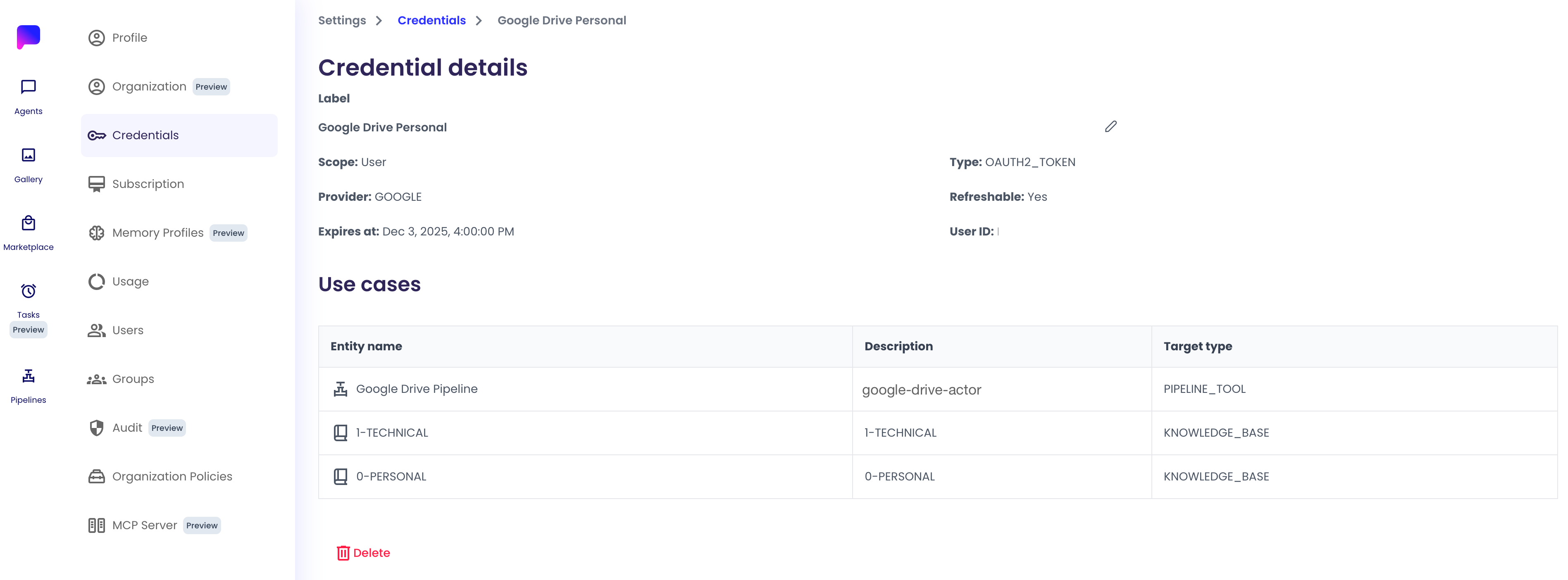
Credentials can be associated with different parts of your Pupau setup. The system tracks where each credential is used. See Credential Use Cases for details on how credential tracking works and how to view associations.
Knowledge Bases
Link credentials to data sources in your knowledge base. This is the most common use case for credentials.
| Data Source | Credential Type | Authentication Method | Token Refresh |
|---|---|---|---|
| Google Drive | OAuth2 Token | OAuth flow (Google) | Automatic when expired1 |
| OneDrive | OAuth2 Token | OAuth flow (Microsoft) | Manual refresh required1 |
| FTP Servers | Connection String | Host, Port, Username, Password | Not applicable |
1 See Token Management for detailed refresh behavior and requirements.
How it works: When adding a knowledge base data source, you'll be prompted to select or create a credential. For Google Drive and OneDrive, you can authenticate directly through OAuth flows. For FTP servers, you'll create a connection string credential. See Common Use Cases for step-by-step setup instructions.
Credential association:
- The credential is linked to the knowledge base data source that requires authentication
- The credential is also associated with the agent that uses the knowledge base
Agent Tools
Link credentials to specific tools used by your AI assistants.
| Tool | Credential Type | Use Case | Supported Services |
|---|---|---|---|
| Database Tool | Username/Password | Connect to databases | PostgreSQL, MySQL, MSSQL (SQL Server) |
| SMTP Tool | Username/Password | Authenticate with email servers for sending emails | SMTP servers |
| Google Drive Tool | OAuth2 Token | Connect to Google Drive folders and files. Supports inflow authentication | Google Drive (auto-refresh) |
| P.A.N.D.A Tool | API Key | Authenticate with P.A.N.D.A tools | P.A.N.D.A tools |
How it works: When configuring certain tools that require authentication, you can select an existing credential or create a new one. The credential is then used by the tool when making authenticated requests.
Credential association:
- The credential is linked to the agent that uses the tool
- The credential is also associated with the specific tool that requires authentication
Note: Custom API call tools currently do not support credential integration.
Inflow Authentication
Inflow authentication allows users to authenticate on-demand when using a tool, rather than requiring credentials to be set up during configuration. Currently, this feature is only available for the Google Drive Tool.
How it works:
- When inflow authentication is enabled, users don't need to select or create credentials during tool configuration
- Instead, authentication happens automatically when the tool is first used during a chat conversation
- Each user authenticates with their own Google account, creating a personal credential that's automatically linked to their account
- The credential is then available for all future conversations with that assistant
Configuring the Tool
- Select your assistant and navigate to its configuration page
- Go to Tool Use (tool usage configuration)
- Select the Google Drive Tool (currently the only tool that supports inflow authentication)
- Locate the credentials option in the tool configuration
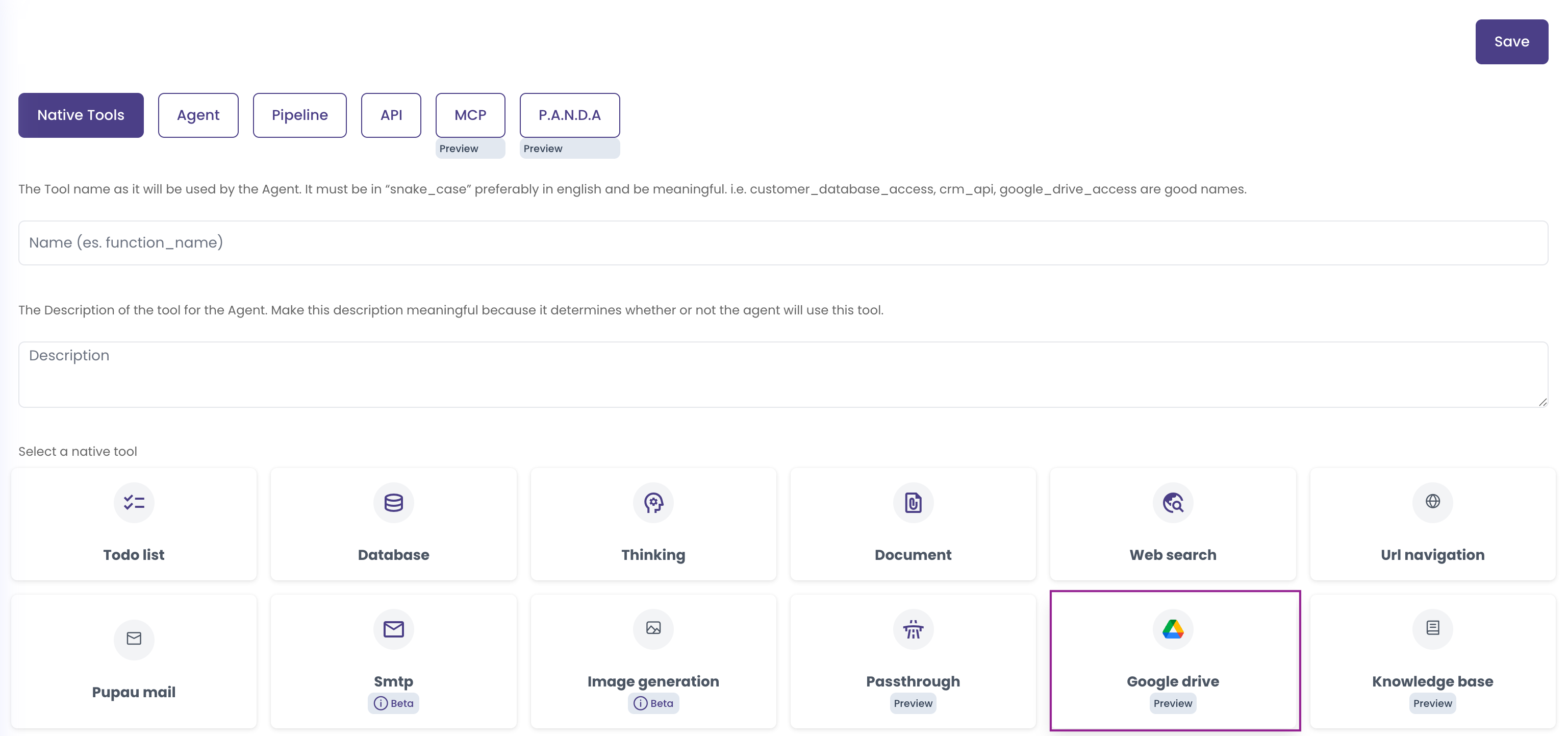
- Choose your authentication method:
- Without inflow authentication: You must select an existing Google credential (created previously, e.g., for Knowledge Base) or create a new one on the spot
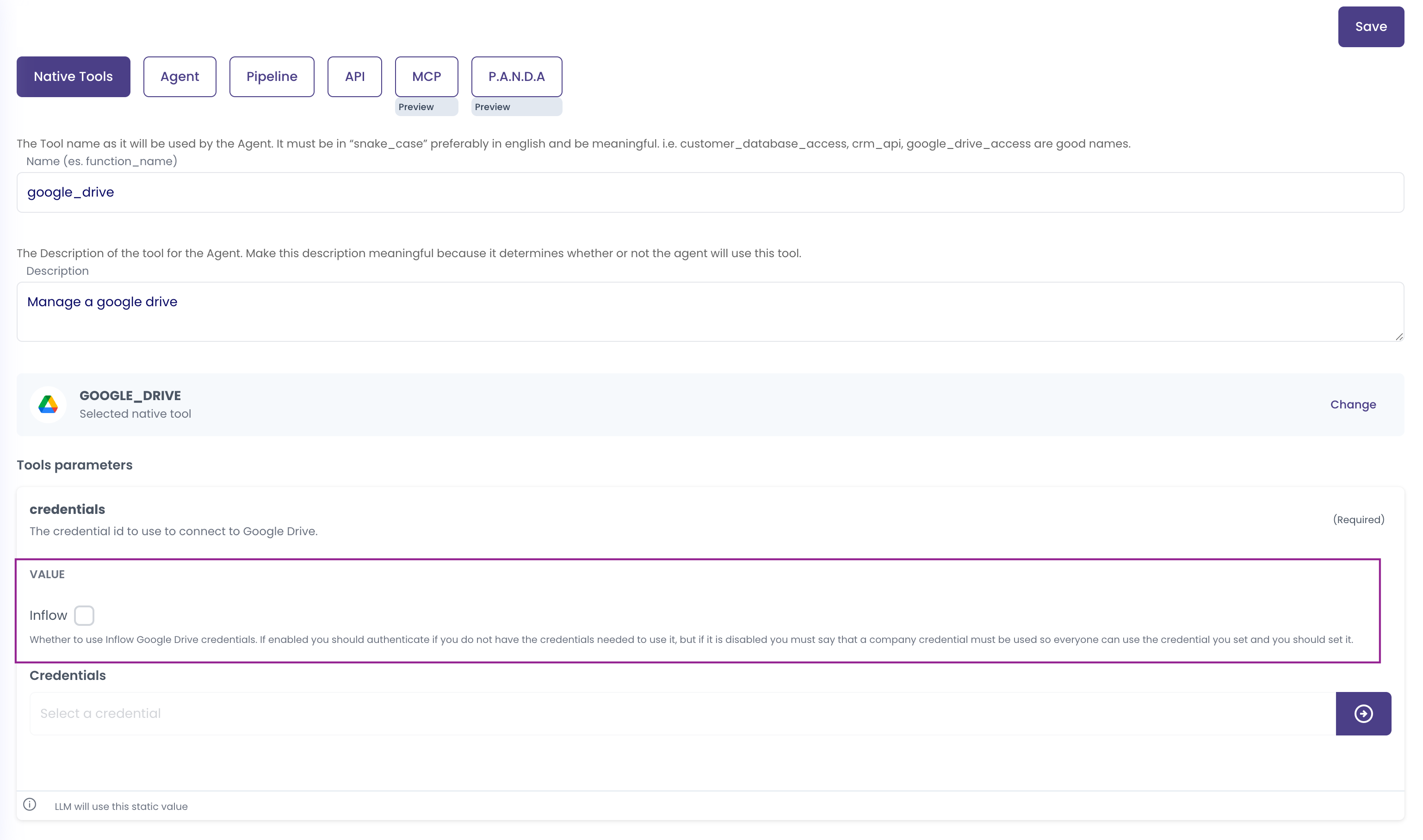
- With inflow authentication: Check the inflow authentication option
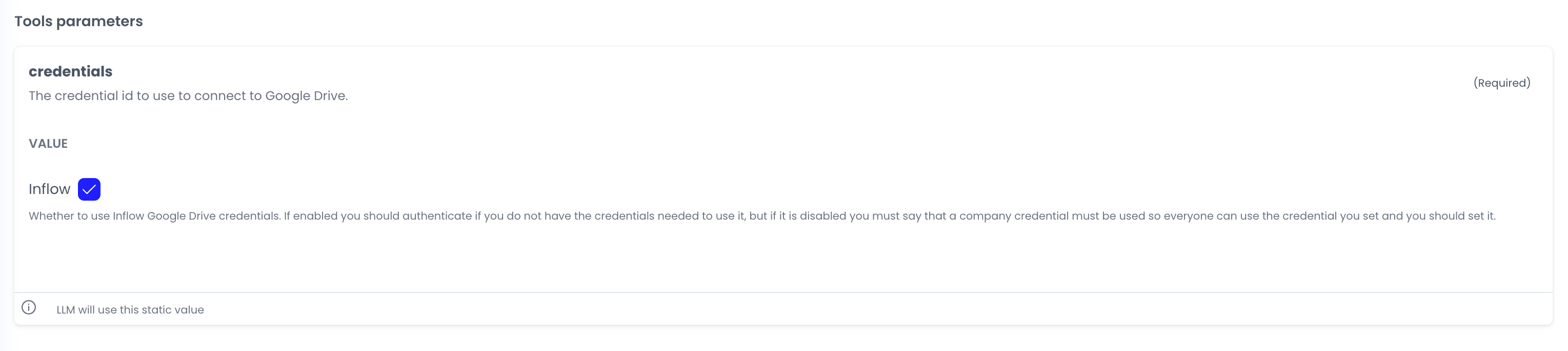
- When inflow authentication is enabled, the credential selection field becomes disabled, indicating that authentication will happen on-demand
- Save the tool configuration - it's now ready to use!
Using the Tool with Inflow Authentication
Once the tool is configured with inflow authentication enabled, users can simply chat with the assistant and request actions that require the Google Drive tool.
-
Start a conversation with the assistant and request an action that uses Google Drive (e.g., "List files in my Google Drive" or "Read a document from Google Drive")
-
The assistant will prompt you to authenticate with Google (the identity provider)
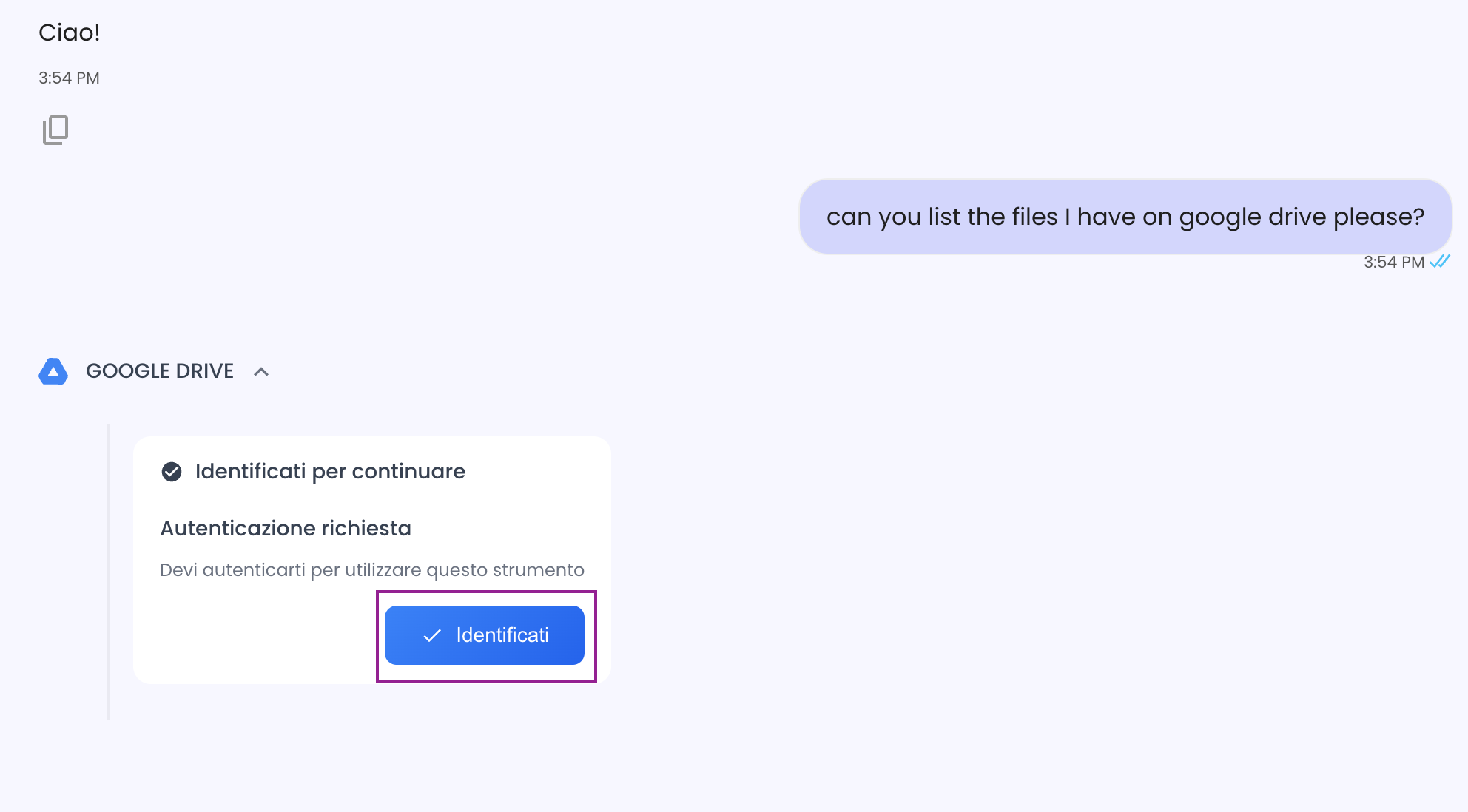
-
Complete the OAuth authentication flow by selecting your Google account and granting the necessary permissions
-
After authentication completes, the conversation automatically resumes and the assistant uses the newly created credential to fulfill your request
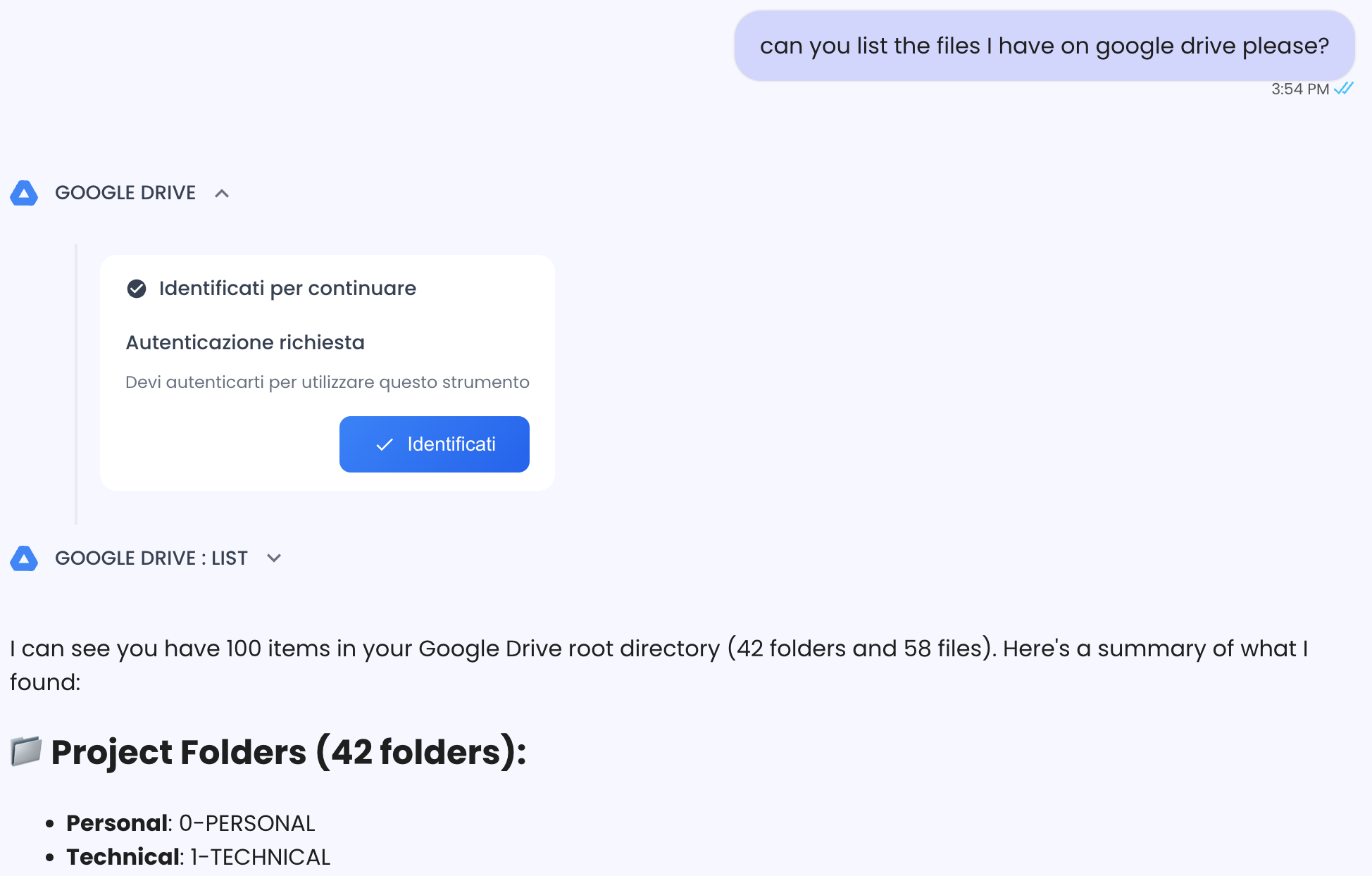
- The credential is now stored and linked to your account, so you won't need to authenticate again for future conversations with this assistant
Benefits:
- No need to pre-configure credentials during tool setup
- Each user authenticates with their own Google account
- Credentials are created automatically when needed
- Seamless user experience - authentication happens naturally during conversation
Pipeline Actors
Link credentials to actors used within pipelines.
| Pipeline Actor | Credential Type | Use Case | Supported Services |
|---|---|---|---|
| Database Actor | Username/Password | Connect to databases within pipelines | PostgreSQL, MySQL, MSSQL (SQL Server) |
| Google Drive Actor | OAuth2 Token | Connect to Google Drive folders and files within pipelines | Google Drive (auto-refresh) |
How it works: When configuring a pipeline actor that requires authentication, you can select a credential that will be used when the pipeline executes that specific tool.
Credential association:
- The credential is linked to the pipeline that contains the tool
- The credential is also associated with the specific actor (tool) within the pipeline configuration
Note: SMTP pipeline actors do not currently support credential integration.
Managing Credentials
Creating Credentials
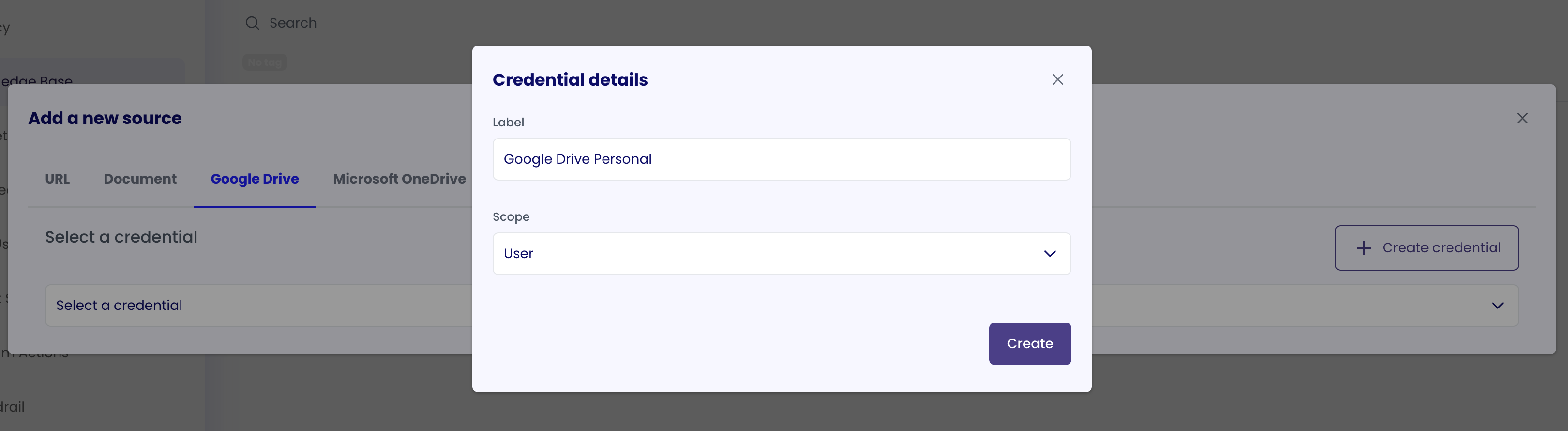
Credentials are not created directly from the credentials page. Instead, they are created in one of two ways:
-
Through Configuration Modules in Specific Tools:
- When configuring tools or data sources that require authentication, credential creation forms are available within the tool configuration interface
- For example, when adding an FTP data source for knowledge base, you'll create a connection string credential as part of the setup
- When configuring the Database tool, you'll create a username/password credential during configuration
- When configuring the P.A.N.D.A tool, you'll create an API key credential during configuration
- When configuring the SMTP tool, you'll create a username/password credential during configuration
-
Through Inflow Authentication (On-Demand):
- Currently available for Google Drive tool only
- Credentials are created on-demand when the tool is actually used during chat conversations
- See Inflow Authentication for detailed setup and usage instructions
Note:
- The credentials page shows all your credentials but is primarily for viewing, editing labels, and managing existing credentials
- You cannot create credentials directly from the credentials page - they must be created through tool configuration modules or inflow authentication flows
- For OAuth token refresh information, see Token Management
Viewing Credentials
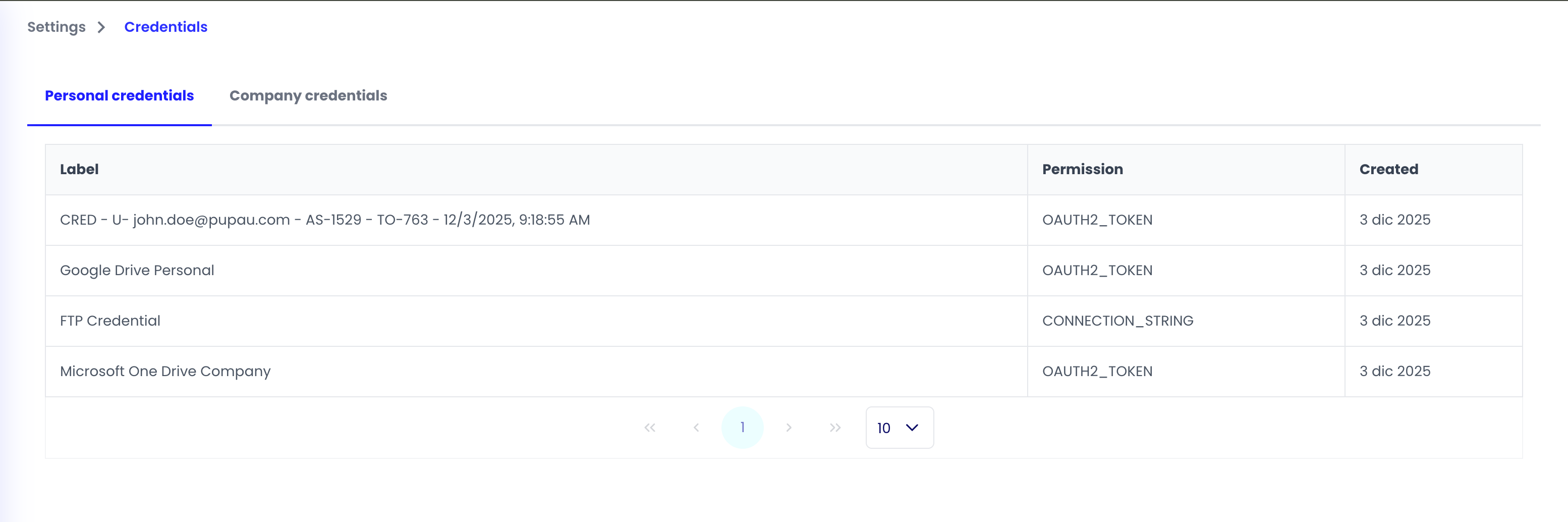
The credentials page (accessible from Account → Credentials) shows all your credentials organized by scope (Personal Credentials or Company Credentials). This page is primarily for viewing and managing existing credentials. When viewing a credential:
- Sensitive data is never exposed: Credential values (passwords, API keys, tokens) cannot be accessed after securely stored
- Metadata displayed: Label, type, scope, provider (for OAuth), refreshable status, expiration date
- Use cases: See exactly where the credential is being used (knowledge bases, agent tools, pipeline tools). See Credential Use Cases for comprehensive information on credential tracking
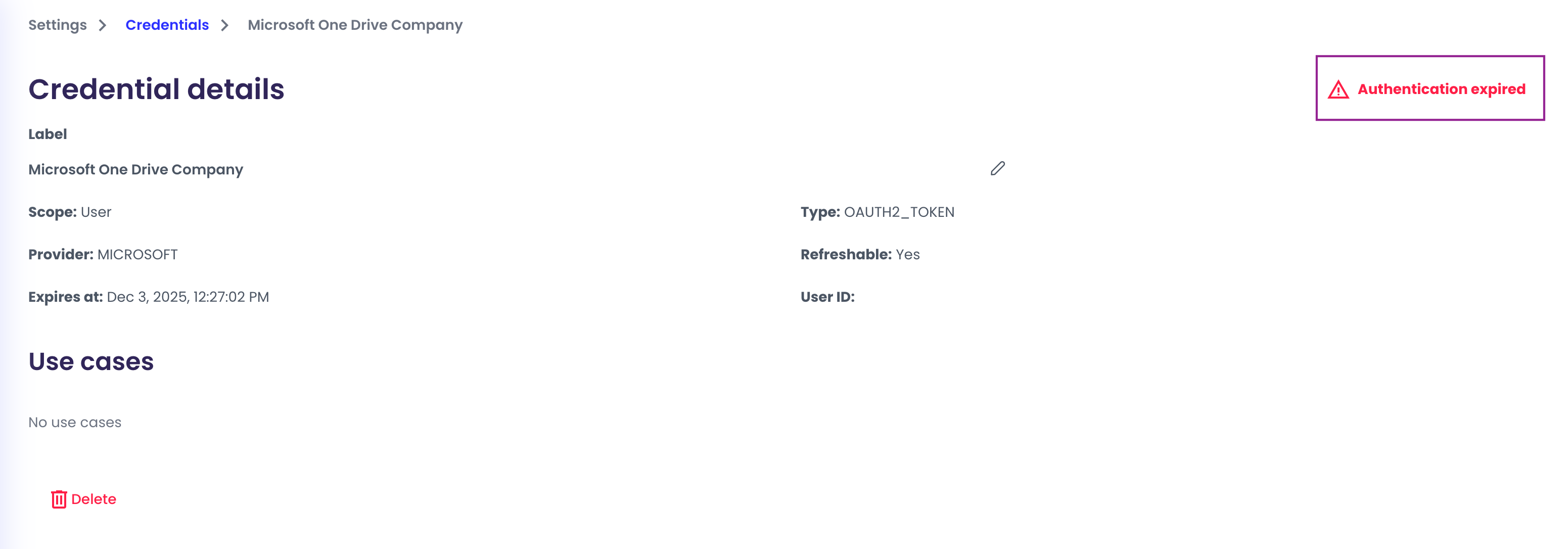
- Status indicators: Invalid or expired OAuth credentials show a warning and refresh button
- Quick navigation: Click on any use case to navigate directly to that configuration
Updating Credentials
- Label: You can edit the label directly from the credential detail page for better organization
- OAuth Tokens: See Token Management for detailed information on token refresh behavior for Google Drive and OneDrive credentials
- Other types: For username/password, API keys, and connection strings, you cannot update the credential data. Create a new credential and update references in your tools or knowledge bases
Manual Refresh and Expired Credentials
When an OAuth credential expires, you'll see a visual indicator on the credentials page and the credential detail page. Here's how to manually refresh an expired credential:
- Navigate to the credential: Go to the credentials page (Account → Credentials) and locate the expired credential. Expired credentials are marked with an "Expired" badge or warning indicator.
-
Open the credential detail page: Click on the expired credential to view its details.
-
Click the authentication expired warning: On the credential detail page, you'll see a warning message indicating that authentication has expired. Click on this warning or the refresh button.
-
OAuth refresh popup: A popup will automatically open, prompting you to re-authenticate with the provider (Google or Microsoft).
-
Select your account: The refresh process does not automatically guarantee that you'll be logged in with the same account. You should choose which Microsoft or Google account you want to use for the renewal. Select the account you want to associate with this credential.
-
Complete authentication: Follow the OAuth flow to grant permissions and complete the authentication. Once successful, the credential will be updated with the new tokens.
Important notes:
- For general token refresh behavior, see Token Management
- Account selection: When refreshing, make sure to select the correct account (Google or Microsoft) that you want to use with this credential, as the system will not automatically use the previous account
Deleting Credentials
When deleting a credential:
- The system shows you all use cases (where the credential is used) before deletion - see Credential Use Cases for details on how tracking works
- Review the use cases to understand the impact
- All associated credential uses are automatically removed when you delete
- The credential is permanently deleted
- Warning: Deleting a credential will break any tools or knowledge bases that depend on it. Make sure to update those configurations first or be prepared to recreate the credential
Credential Use Cases
The system automatically tracks where each credential is being used across your Pupau setup. This tracking provides visibility into credential dependencies and helps you manage access effectively.
How Credential Tracking Works
When you create a credential and associate it with tools, knowledge bases, or pipeline actors, the system automatically records these associations. The tracking includes:
- Knowledge Bases: Which knowledge base data sources use the credential
- Agent Tools: Which tools in which assistants use the credential
- Pipeline Actors: Which pipeline actors use the credential
Viewing Credential Associations
You can view credential associations in two ways:
-
From the Credential Detail Page: When viewing a specific credential, you'll see a complete list of all use cases, including:
- Knowledge bases that use the credential
- Agent tools that use the credential
- Pipeline tools that use the credential
- Quick navigation links to each associated configuration
-
From Tool/Knowledge Base Configuration: When configuring tools or knowledge bases, you can see which credentials are already in use.
Using Credential Tracking
Credential use tracking helps you:
- View associations: See which agents, pipelines, or knowledge bases use a credential at a glance
- Manage dependencies: Understand the full impact before deleting credentials
- Audit access: Track credential usage across your organization for security and compliance
- Navigate quickly: Click on any use case to navigate directly to that configuration
Common Use Cases
This section provides step-by-step guides for setting up credentials for different tools and knowledge base data sources. Each guide includes detailed instructions, prerequisites, and credential-specific information. Guides are organized by credential type.
Username/Password Credentials
Use username/password credentials for database connections and email server authentication.
- Database Tool - Set up username/password credentials for PostgreSQL, MySQL, and MSSQL databases
- SMTP Tool - Configure username/password credentials for email server authentication
OAuth2 Token Credentials
Use OAuth2 token credentials for cloud storage services like Google Drive and OneDrive.
- Google Drive Knowledge Base - Set up Google Drive as a knowledge base data source using OAuth2 credentials
- OneDrive Knowledge Base - Set up OneDrive as a knowledge base data source using OAuth2 credentials
- Google Drive Tool with Inflow Authentication - Configure on-demand authentication for the Google Drive Tool
API Key Credentials
Use API key credentials for authenticating with external services that require API keys.
- P.A.N.D.A Tool - Set up API key credentials for P.A.N.D.A tool authentication
Connection String Credentials
Use connection string credentials for server access that requires host, port, username, and password information.
- FTP Server Knowledge Base - Set up FTP servers as a knowledge base data source using connection string credentials
Best Practices
Organization
- Use descriptive labels that indicate the service and purpose
- Group related credentials by scope (user vs company)
- Document credential purposes in the label or description
Security
- Choose scope carefully based on your needs - see Personal vs Organization Scopes Comparison for detailed guidance
- Use COMPANY scope for shared resources, USER scope for personal credentials
- Regularly review and rotate credentials, especially API keys
- Monitor credential expiration dates for OAuth tokens
- Delete unused credentials to reduce attack surface
OAuth Credentials
- Monitor credential expiration and refresh status
- Use provider-specific OAuth flows (Google/Microsoft) when available
Integration
- Credentials are automatically linked to tools or data sources when created through configuration flows
- Use credential use tracking to understand dependencies before deleting
- Test credentials after creation to ensure proper access
Next Steps
- Learn how to use an Assistant via API Key
- Learn how to use a Pipeline via API Key
- Explore Tool Use to see how credentials are used with tools
- Check Knowledge Base configuration for credential usage