Google Drive Tool with Inflow Authentication
Inflow authentication allows users to authenticate on-demand when using a tool, rather than requiring credentials to be set up during configuration. Currently, this feature is only available for the Google Drive Tool.
Note: This is different from Google Drive knowledge base setup, where you create credentials during configuration. Inflow authentication happens on-demand during chat conversations.
For general information about inflow authentication, see Inflow Authentication in the Credentials documentation.
How it works
- When inflow authentication is enabled, users don't need to select or create credentials during tool configuration
- Instead, authentication happens automatically when the tool is first used during a chat conversation
- Each user authenticates with their own Google account, creating a personal credential that's automatically linked to their account
- The credential is then available for all future conversations with that assistant
Configuring the Tool
- Select your assistant and navigate to its configuration page
- Go to Tool Use (tool usage configuration)
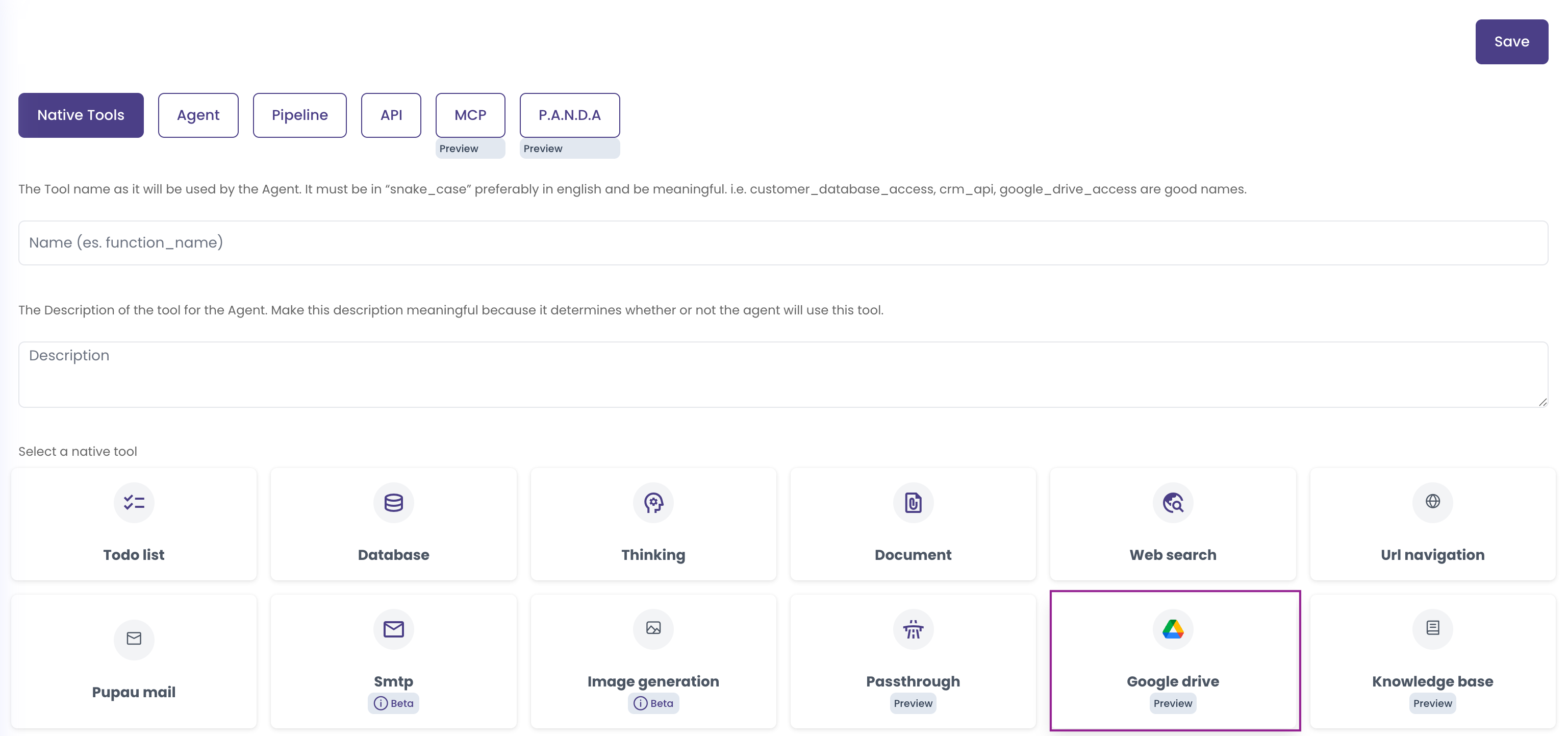
- Select the Google Drive Tool (currently the only tool that supports inflow authentication)
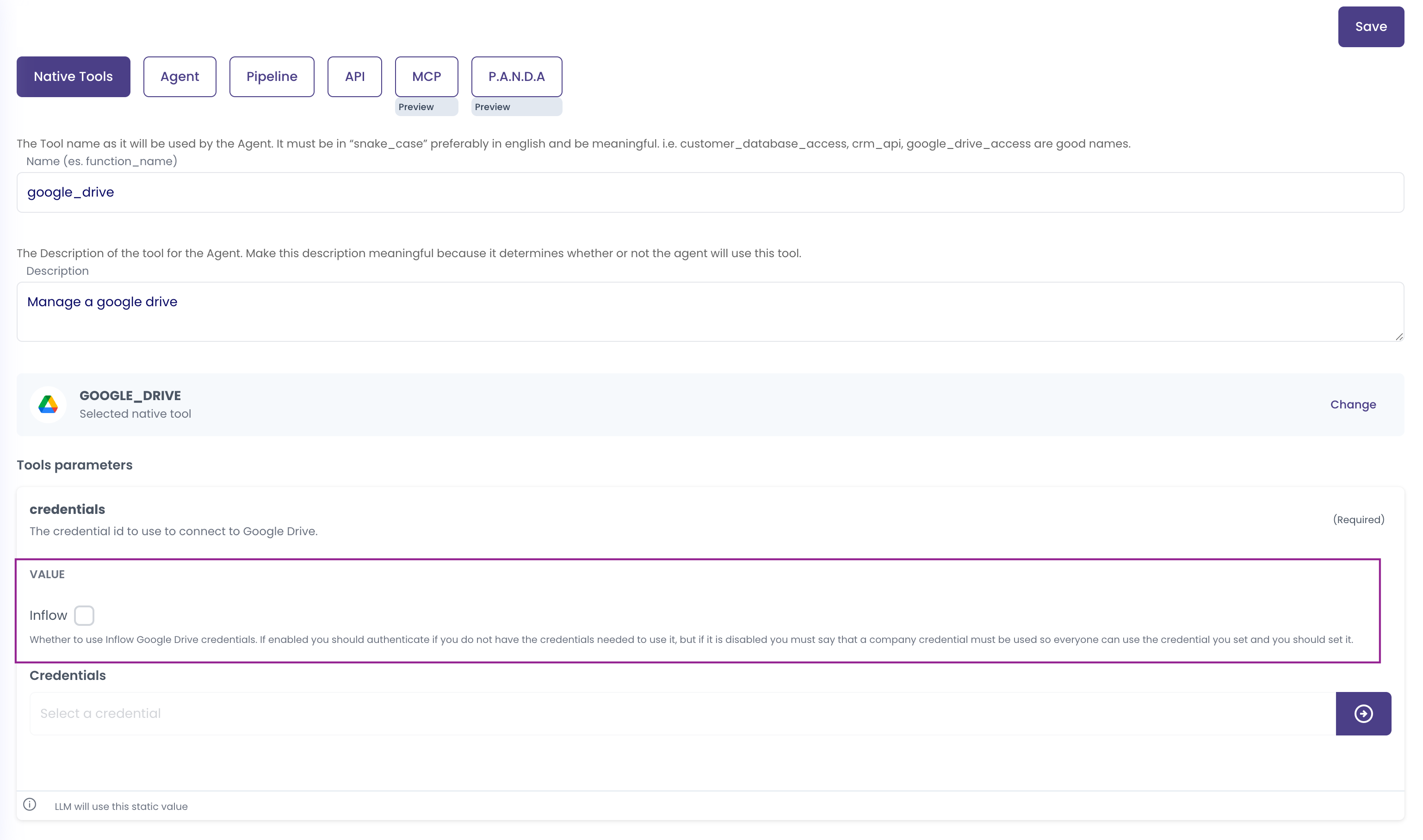
- Locate the credentials option in the tool configuration
-
Choose your authentication method:
- Without inflow authentication: You must select an existing Google credential (created previously, e.g., for Knowledge Base) or create a new one on the spot
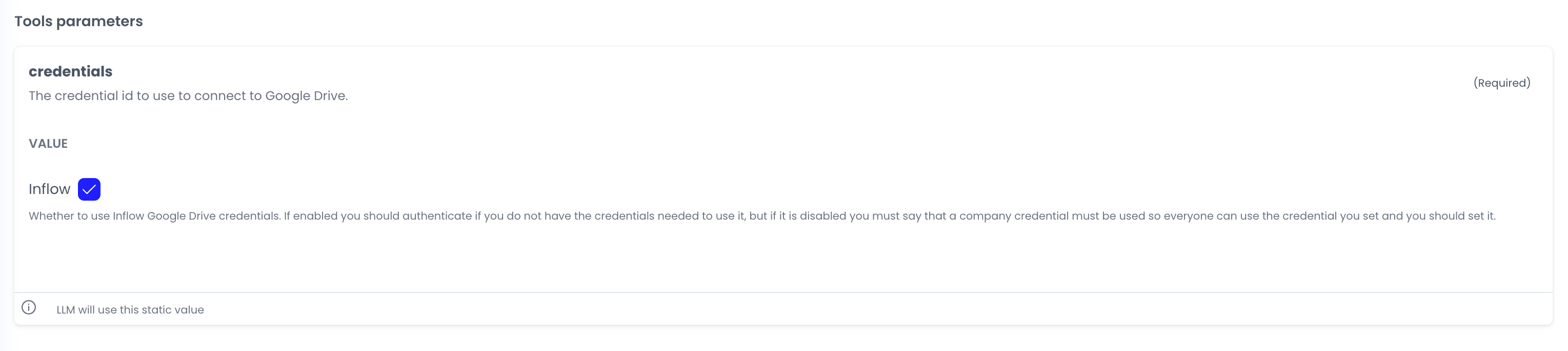
- With inflow authentication: Check the inflow authentication option
-
When inflow authentication is enabled, the credential selection field becomes disabled, indicating that authentication will happen on-demand
-
Save the tool configuration - it's now ready to use!
Using the Tool with Inflow Authentication
Once the tool is configured with inflow authentication enabled, users can simply chat with the assistant and request actions that require the Google Drive tool.
-
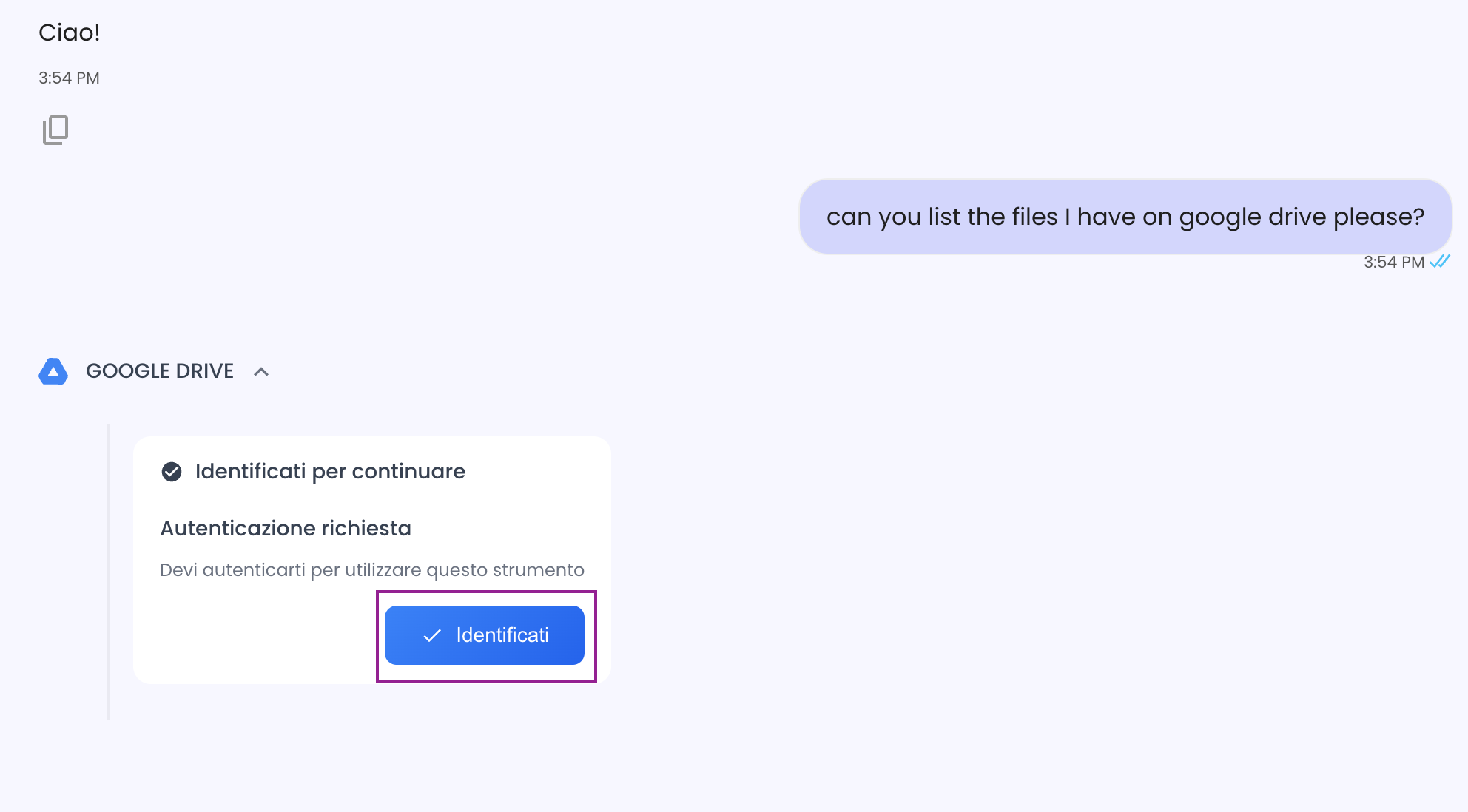
Start a conversation with the assistant and request an action that uses Google Drive (e.g., "List files in my Google Drive" or "Read a document from Google Drive")
-
The assistant will prompt you to authenticate with Google (the identity provider)
-
Complete the OAuth authentication flow by selecting your Google account and granting the necessary permissions
-
After authentication completes, the conversation automatically resumes and the assistant uses the newly created credential to fulfill your request
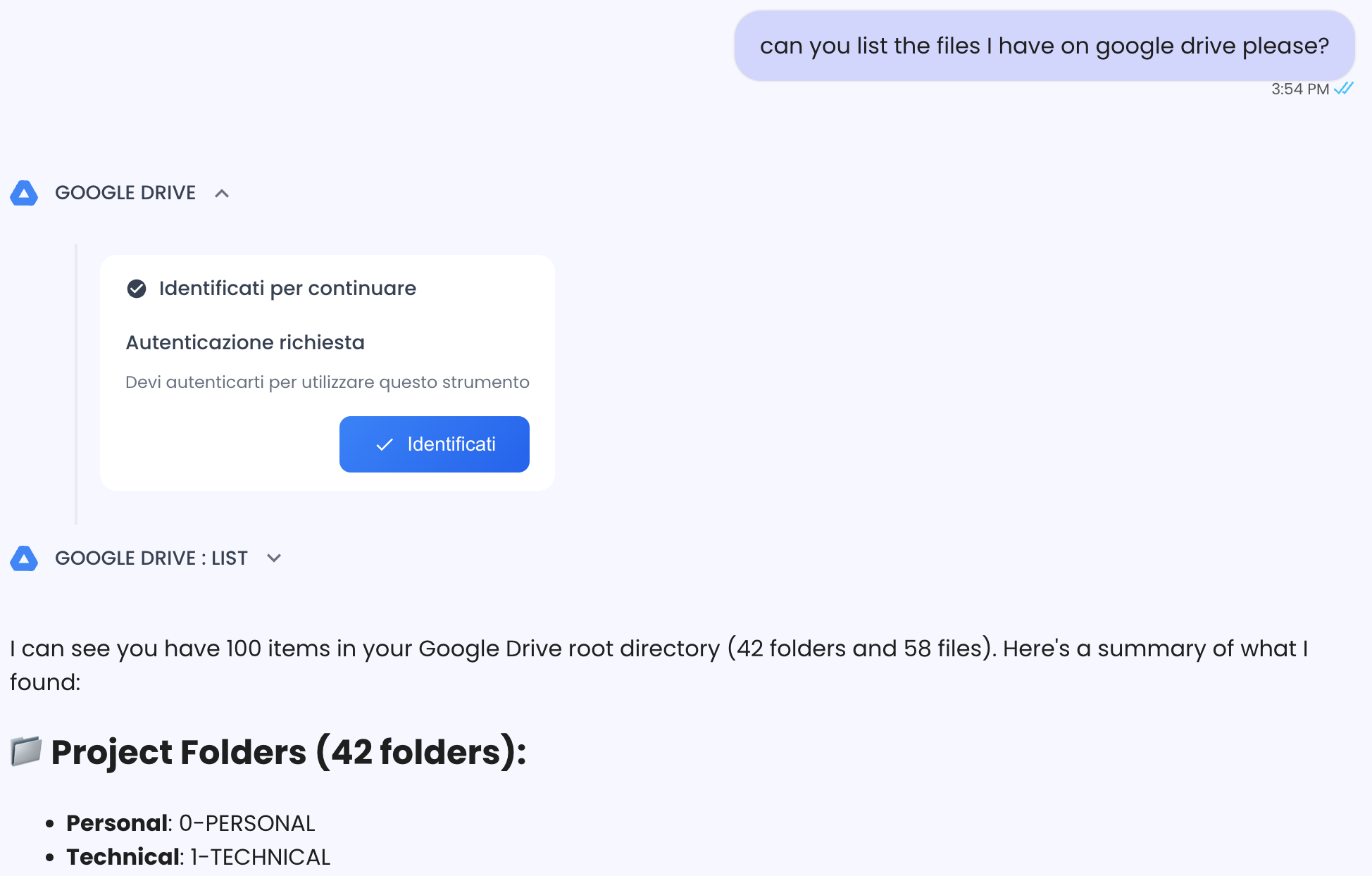
- The credential is now stored and linked to your account, so you won't need to authenticate again for future conversations with this assistant
Benefits
- No need to pre-configure credentials during tool setup
- Each user authenticates with their own Google account
- Credentials are created automatically when needed
- Seamless user experience - authentication happens naturally during conversation