FTP Server Knowledge Base
Set up an FTP server as a data source for your knowledge base using connection string credentials.
Prerequisites
- FTP server hostname or IP address
- FTP server port (usually 21)
- FTP server username and password
- An assistant with Knowledge Base configuration access
Setup Steps
- Navigate to your assistant's Knowledge Base configuration
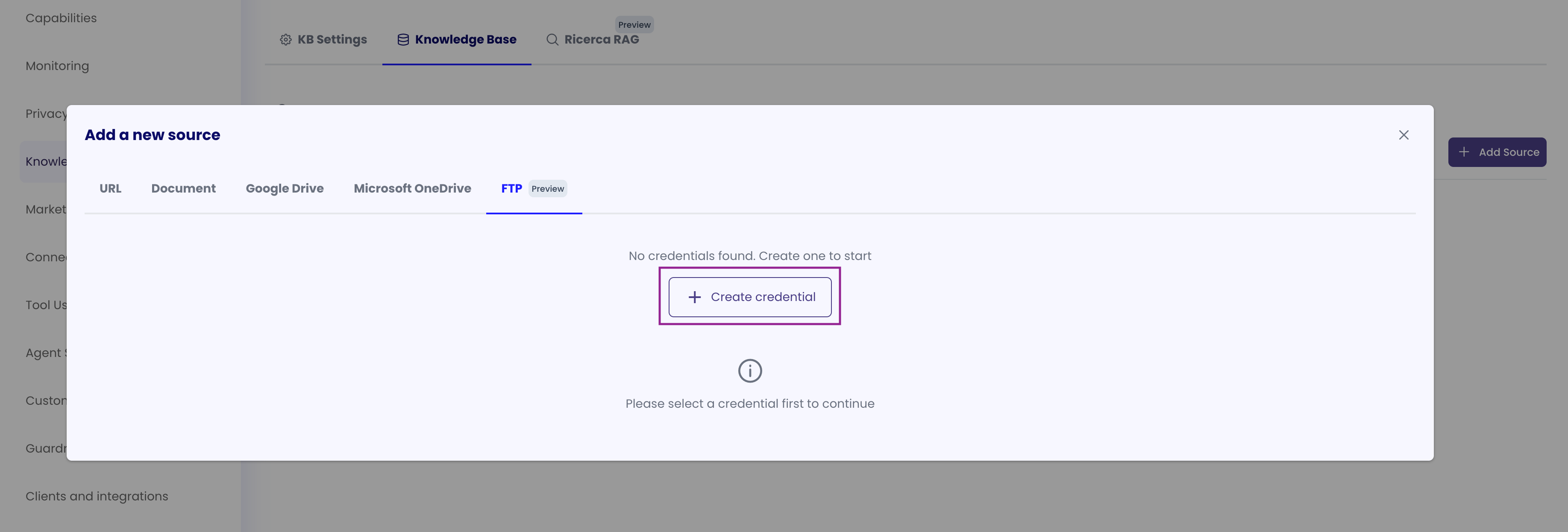
- Add a new data source and select "FTP"
- Create a connection string credential with:
- FTP server host: Enter the FTP server hostname or IP address
- Port: Usually 21 (default FTP port)
- Username: Enter your FTP server username
- Password: Enter your FTP server password
- Select the credential and browse FTP folders
- Choose files/folders to include in your knowledge base
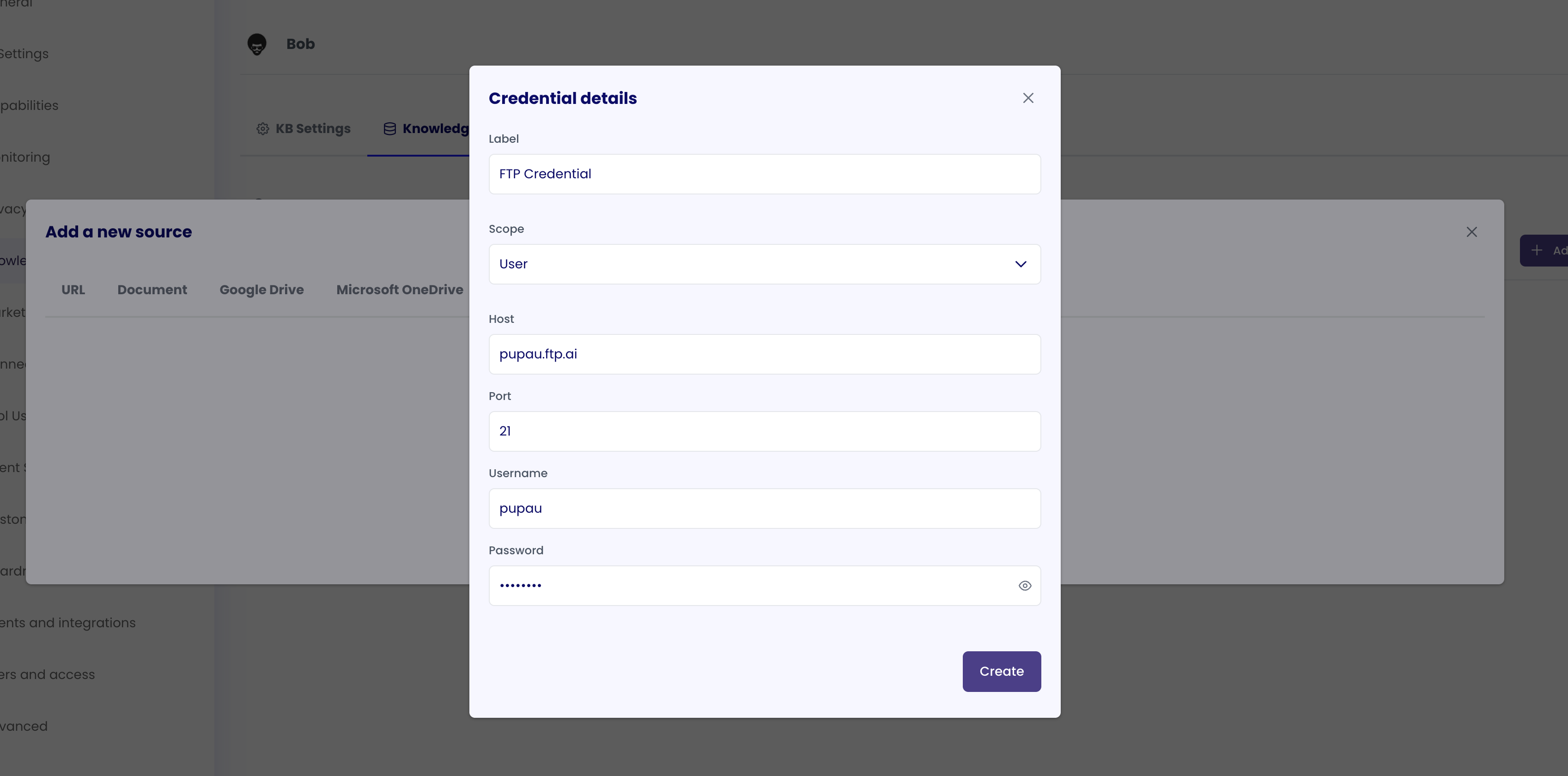
Credential Details
- Credential Type: Connection String
- Data Format: Host + Port + Username + Password
- Token Refresh: Not applicable
- Scope: Can be Personal (
USER) or Organization (COMPANY) - see Personal vs Organization Scopes Comparison for guidance
Notes
- Connection string credentials store all connection information in a single credential
- The credential is linked to both the knowledge base data source and the agent that uses the knowledge base
- You can reuse the same FTP credential across multiple knowledge bases if needed
- For updating credentials, you'll need to create a new credential and update references in your knowledge base configuration