Using an Assistant
Introduction
Home
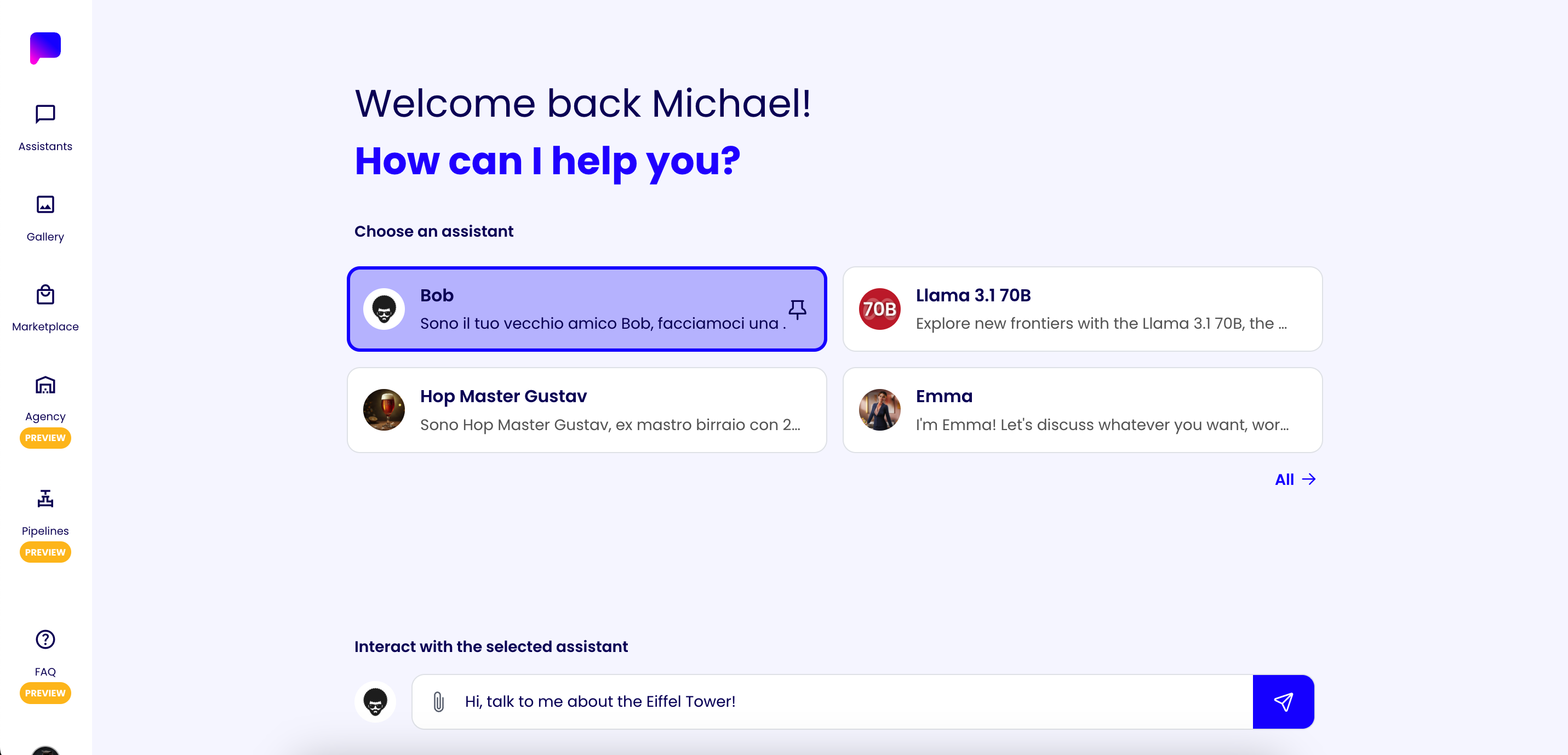
While on the Home page you can see your most recent assistants.
Double click on the assistant to open the assistant chat or select the assistant you wish to chat with with a single click and write your message in the input field below, after clicking the Send button you will be redirected to the assistant chat.
Assistants List
While on the Assistants list page you can see all your assistants. Simply click on the assistant you wish to chat with and you will be redirected to the assistant chat.
Chatting with an Assistant
While on the assistant chat page you can chat with the assistant using the input field below. In the same input field you can also mention other assistants, upload resources and perform web searches.
Mention other Assistants
To mention other assistants, you can use the @ symbol followed by the name of the assistant you wish to mention.
After typing the @ symbol, a box will appear with the list of assistants based on the name you are typing. Select the the assistant you wish to mention and the assistant will be mentioned in the next message you send.
To remove the mention, you can click on the remove icon next to the mention and it will be removed.

Resources
Upload Resources
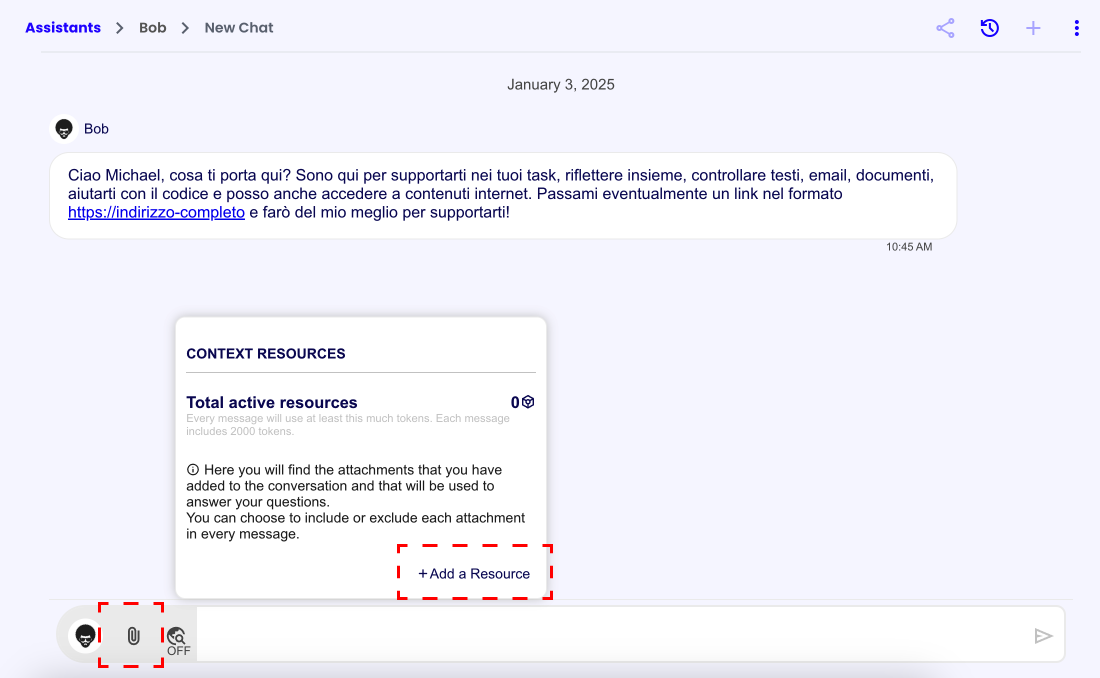
To upload resources, you can click on the paperclip icon at the left of the input field.
After clicking the paperclip icon, a box with useful information will appear. In the box you can press the 'Add a Resource' button to upload a file.
Manage Resources
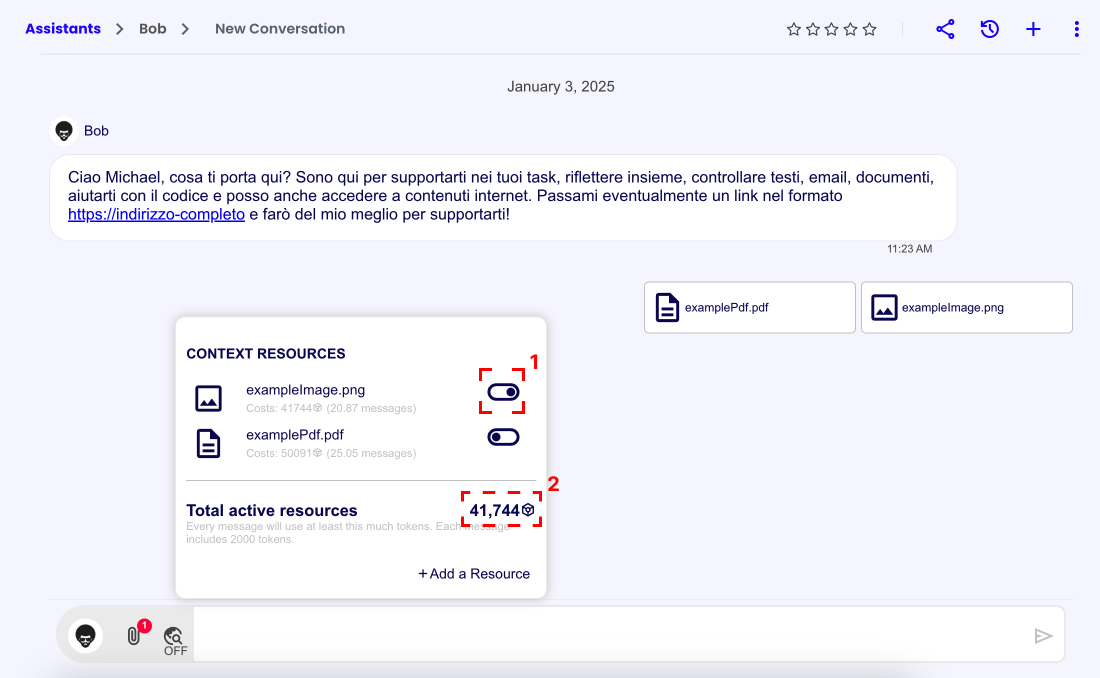
After uploading one or more resources, you can decide to enable or disable them in your next messages.
To enable or disable a resource, you can click on its switch button (1).
You can also see how many tokens all your enabled resources will cost you in the 'Total active resources' section (2).
Web Search
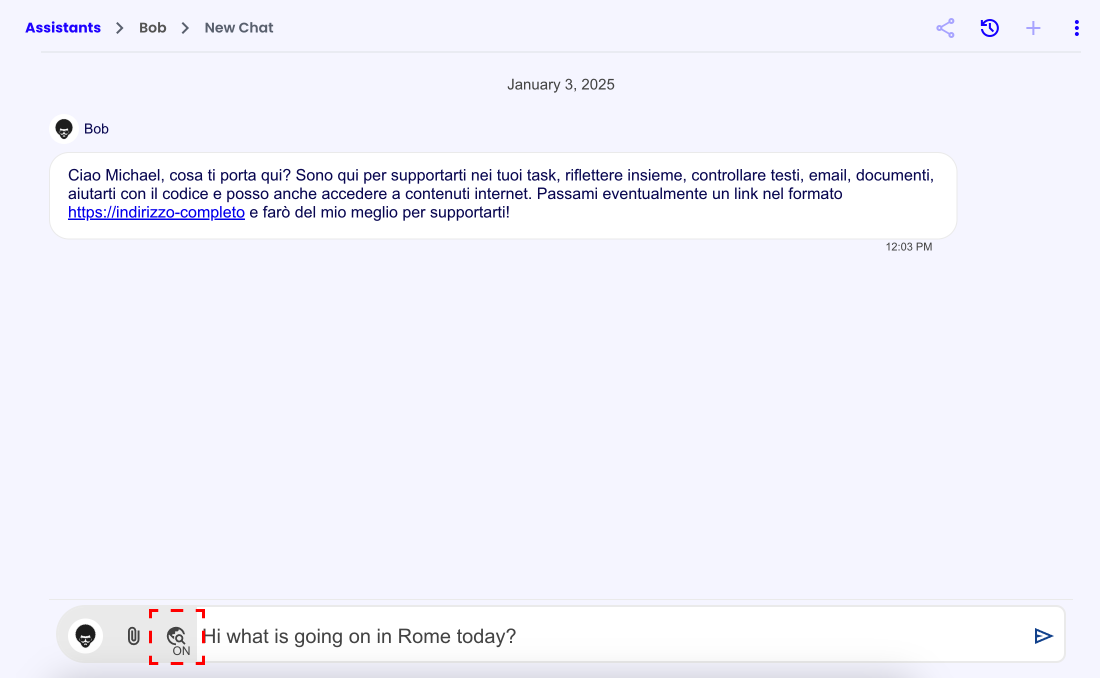
To use the Web Search, you can click on the Web Search button (icon of a globe with magnifying glass) at the left of the input field and make sure it's on "ON".
With the Web Search enabled, the assistant will perform Web Searches autonomously in function of the topic being discussed.