OneDrive Knowledge Base
Set up OneDrive as a data source for your knowledge base using OAuth2 credentials.
Prerequisites
- A Microsoft account with access to the OneDrive files/folders you want to include
- An assistant with Knowledge Base configuration access
Setup Steps
- Navigate to your assistant's Knowledge Base configuration
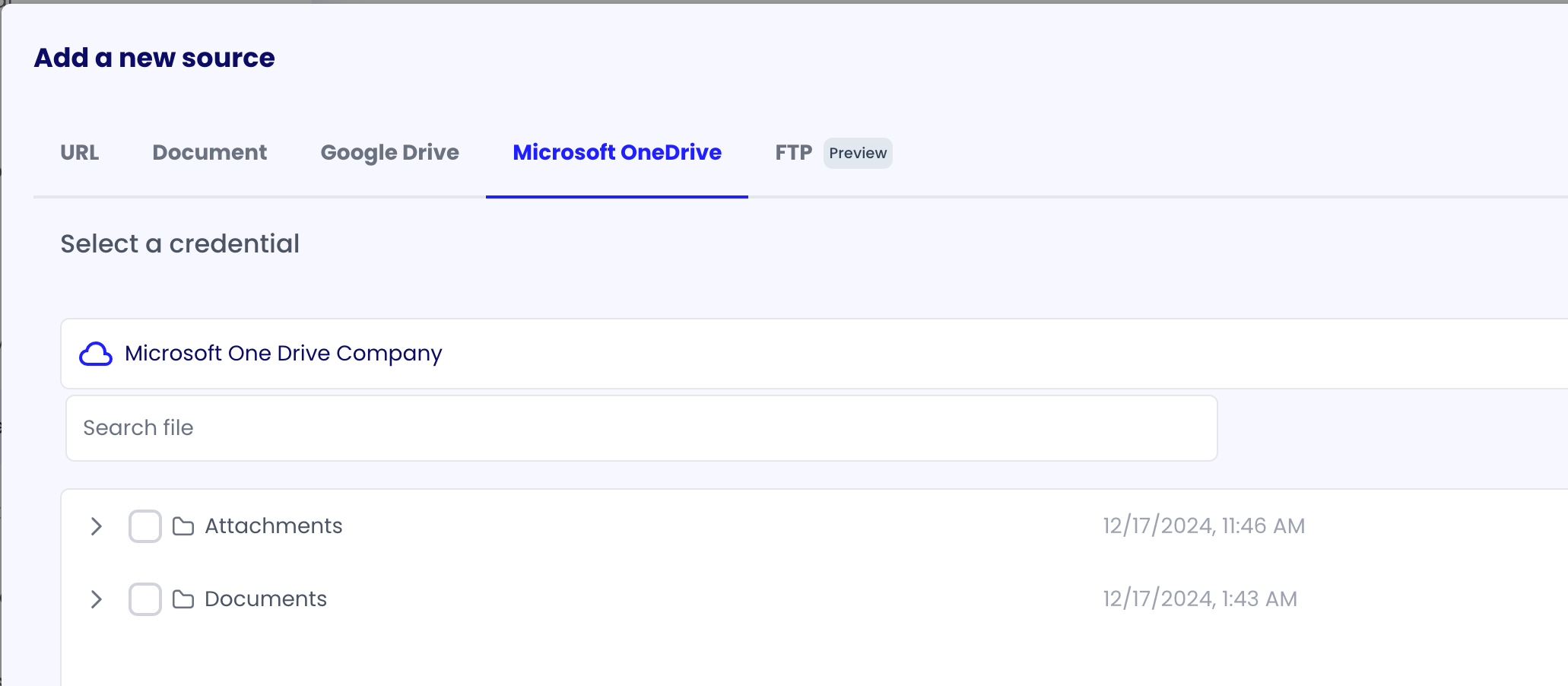
- Add a new data source and select "OneDrive"
- Click "Create Credential" or select an existing Microsoft OAuth credential
- Authenticate with Microsoft and grant necessary permissions
- Select the folders/files you want to include in your knowledge base
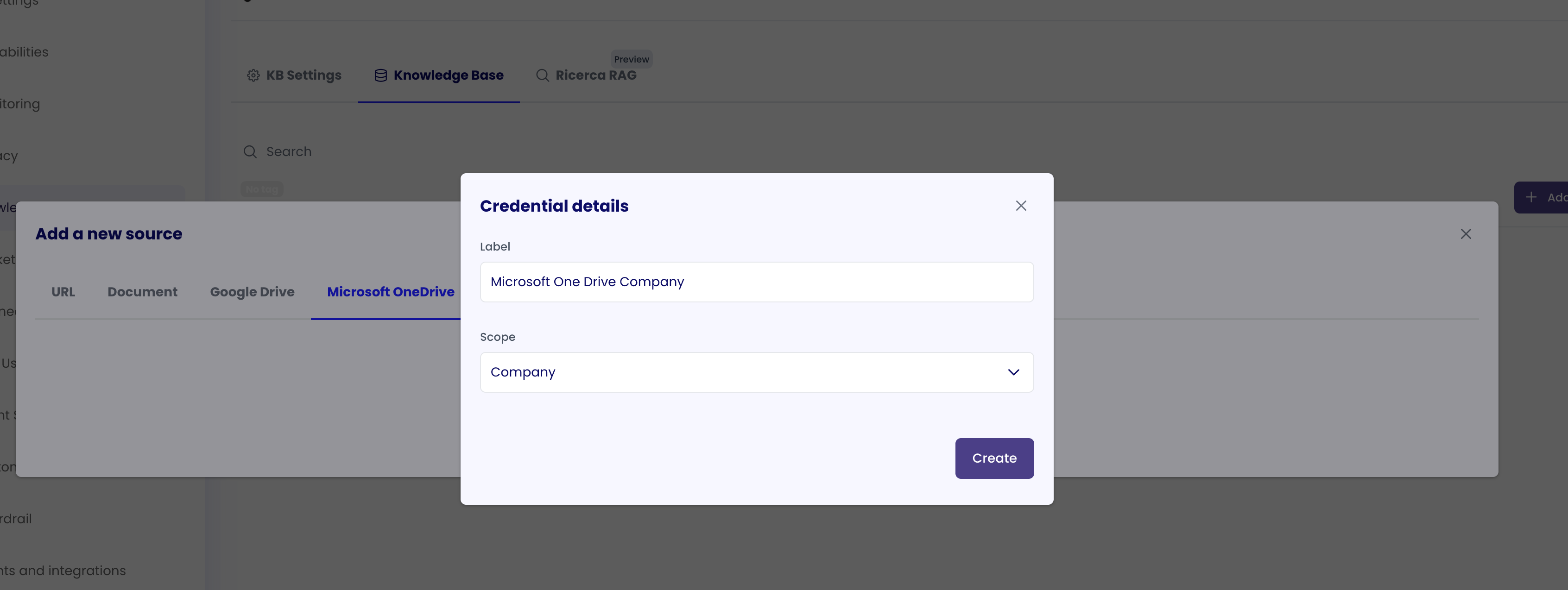
Credential Details
- Credential Type: OAuth2 Token
- Provider: Microsoft
- Token Refresh: Manual refresh required when tokens expire (see Token Management for details)
- Scope: Can be Personal (
USER) or Organization (COMPANY) - see Personal vs Organization Scopes Comparison for guidance
Important Notes
- OneDrive credentials require manual refresh when tokens expire. See Manual Refresh and Expired Credentials for step-by-step refresh instructions
- You'll see visual indicators when a OneDrive credential expires
- The credential is linked to both the knowledge base data source and the agent that uses the knowledge base
- You can reuse the same OneDrive credential across multiple knowledge bases if needed