WhatsApp Connector
This connector allows your assistant to interact with users on WhatsApp.
Implementation
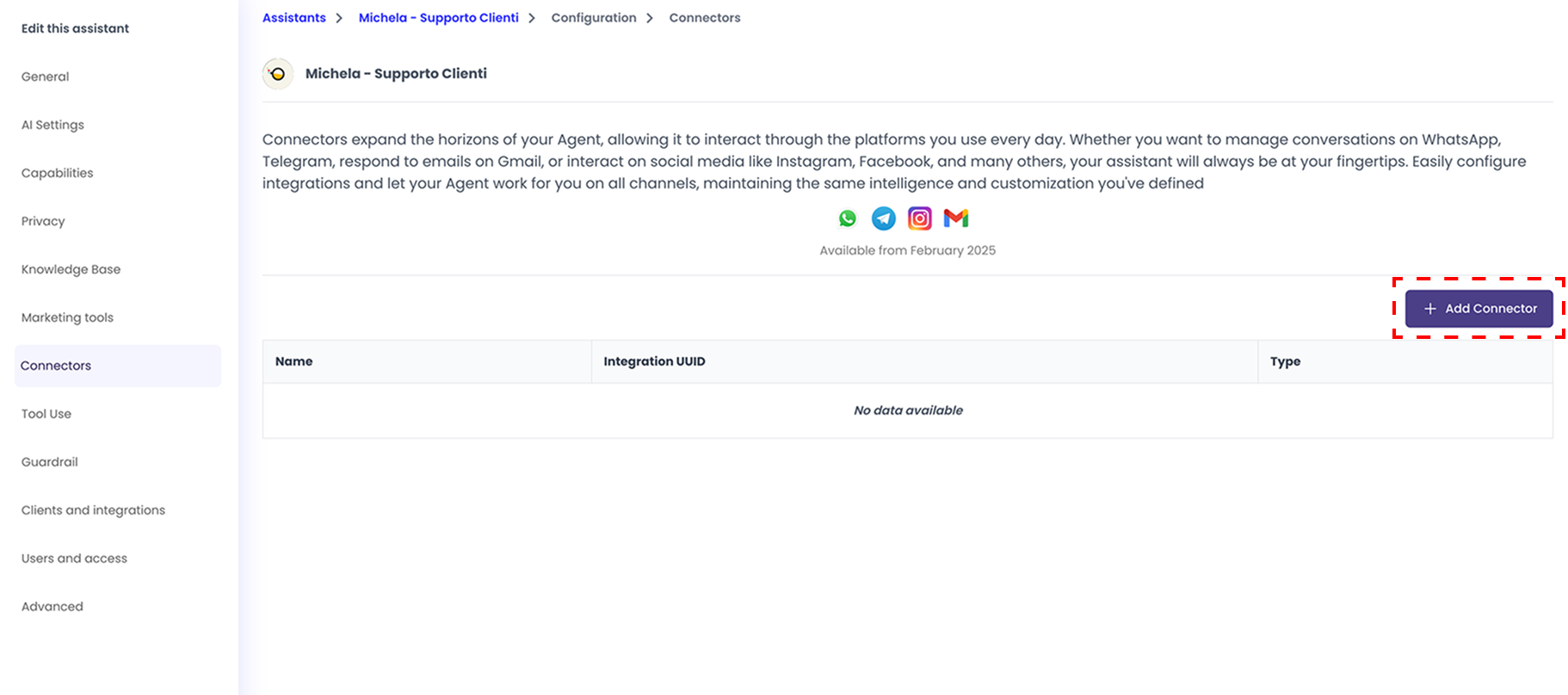
To get started, go in the "Connectors" section of your assistant configuration and click on "Add Connector".
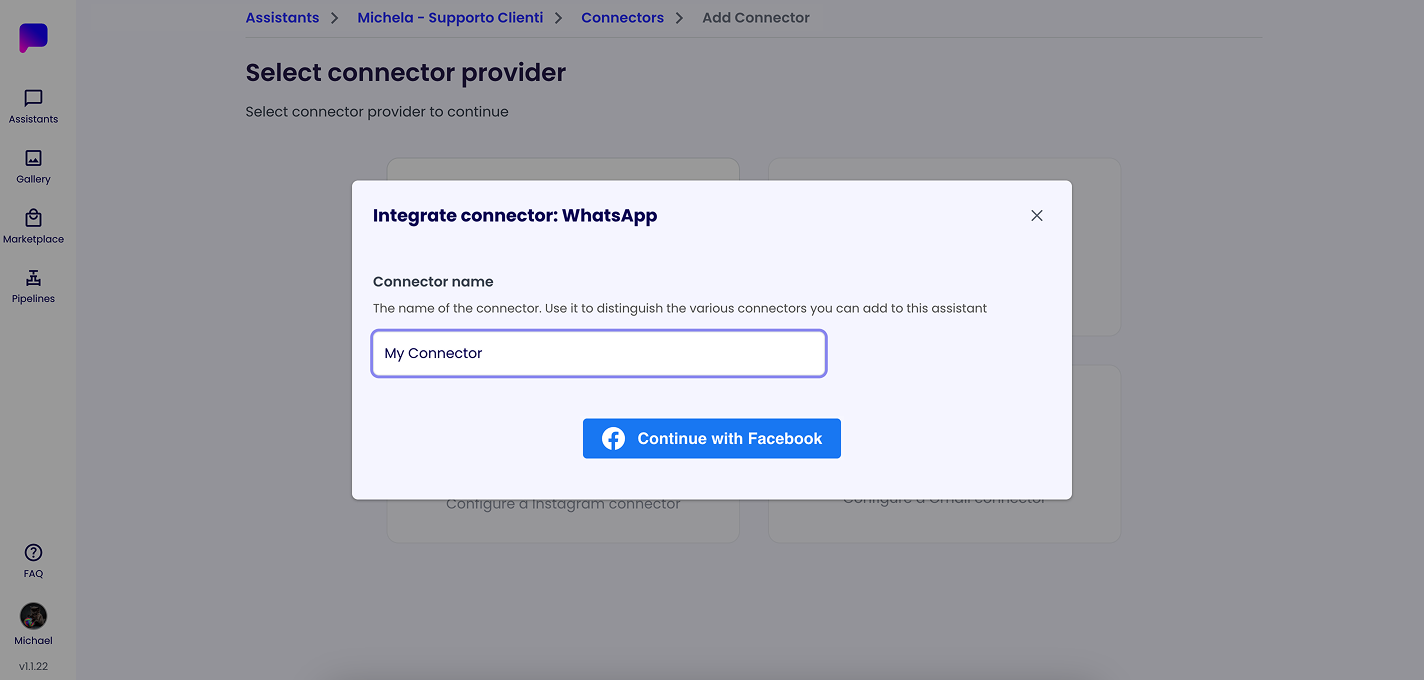
After that, select the "WhatsApp" connector, give it a name of your choice (can be edited later) and click on "Continue with Facebook", you will be redirected to the Facebook login page.
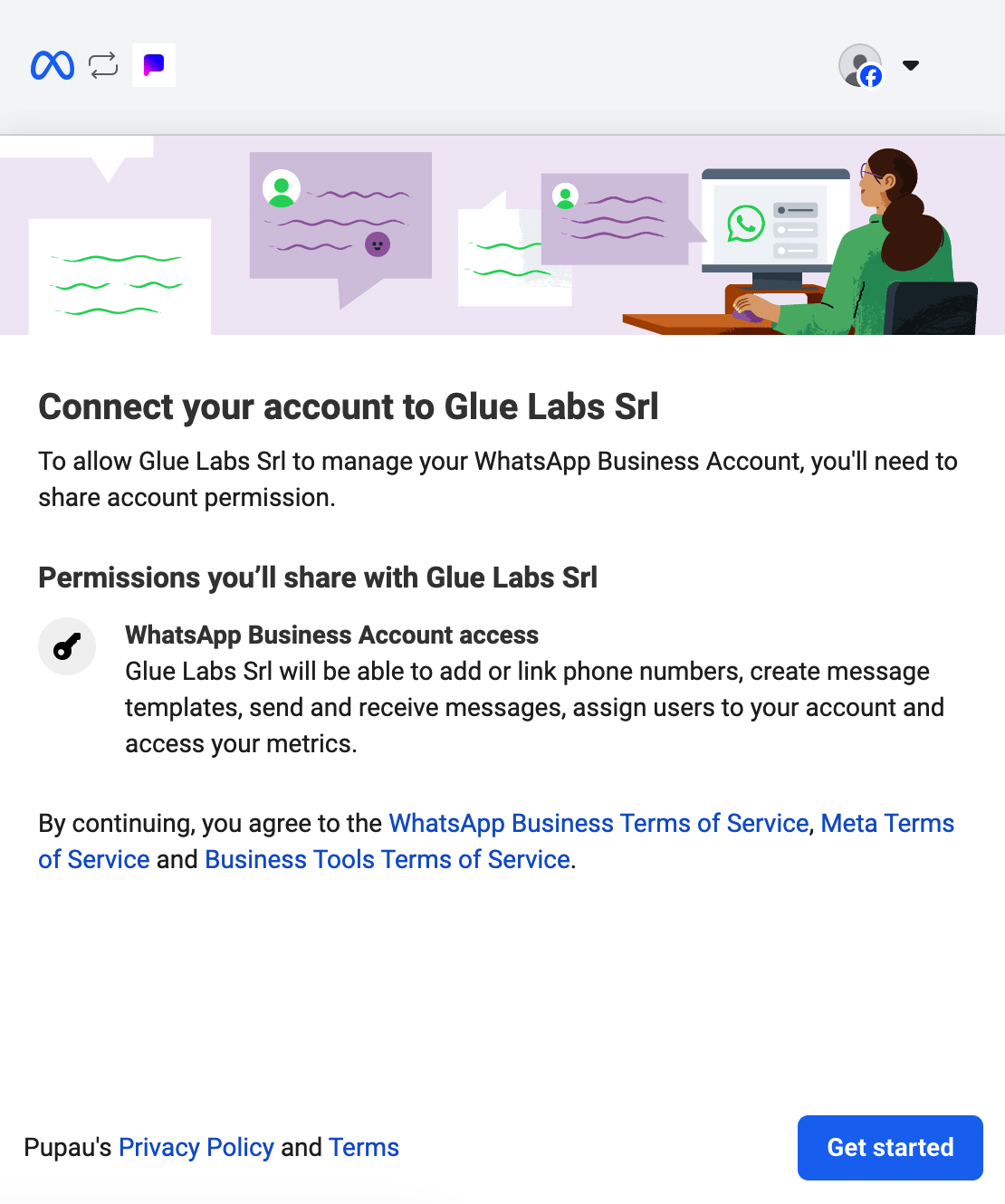
After logging in, you will be prompted to grant access to your WhatsApp Business account to Glue Labs, click on "Get Started" to grant access and continue with the configuration.
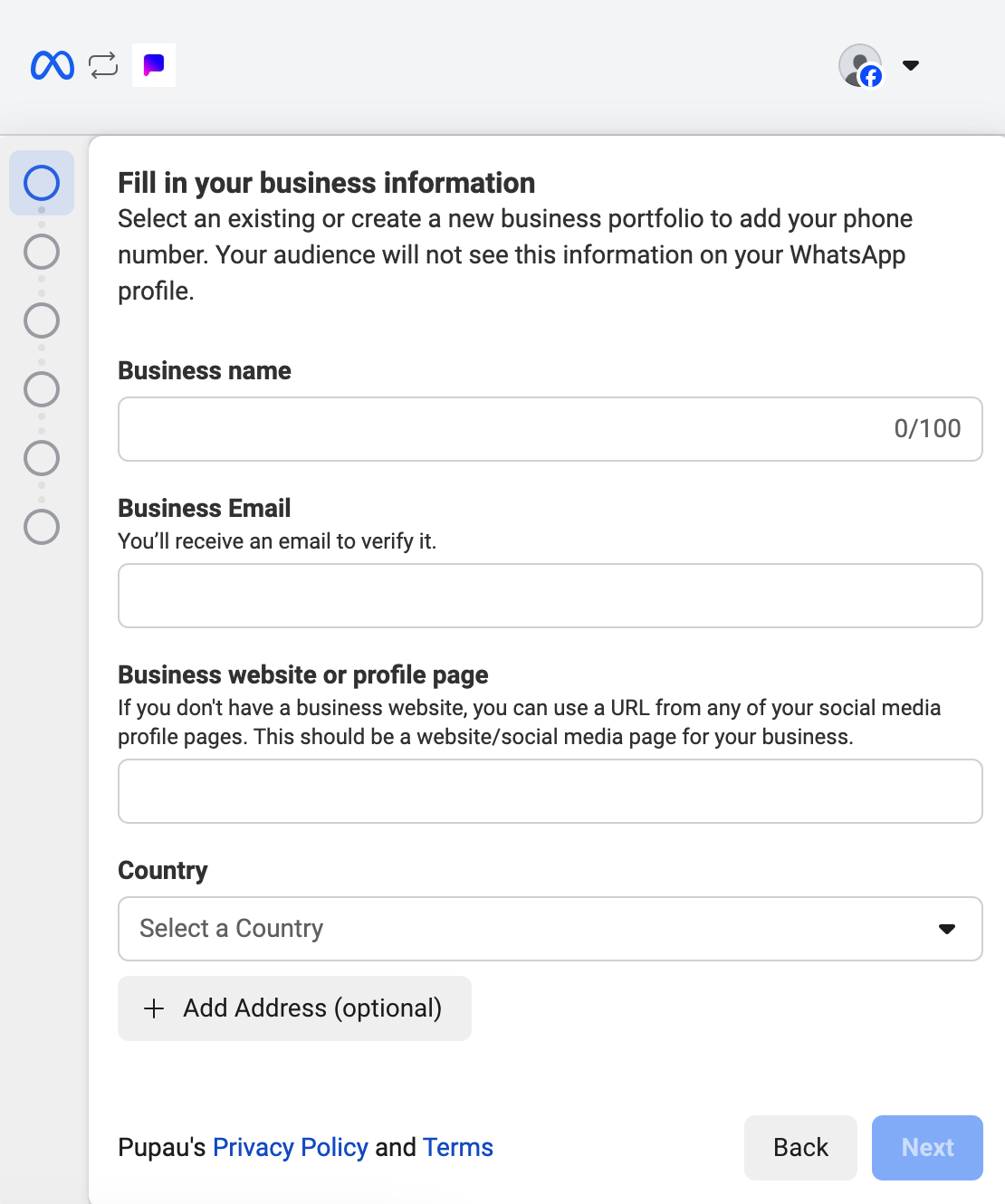
Now if you don't already have a WhatsApp Business account, you will see the following forms, that will guide you through the creation of your account.
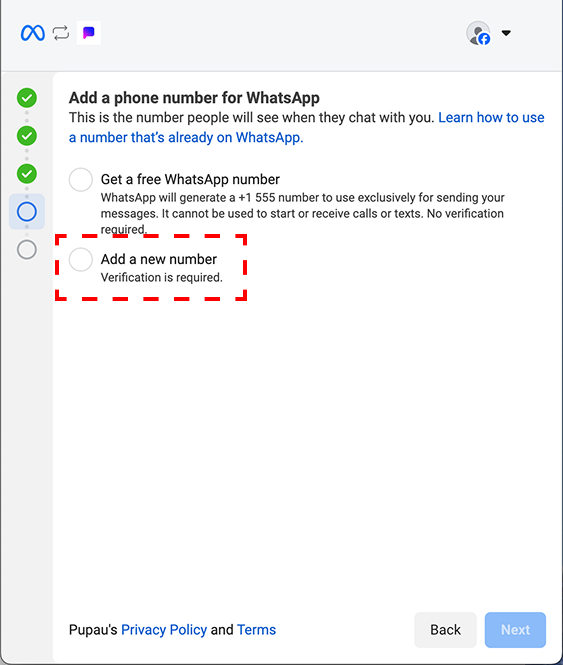
When you get to the step 'Add a phone number for WhatsApp' you must select the 'Add a new number' option to make the Pupau implementation work.
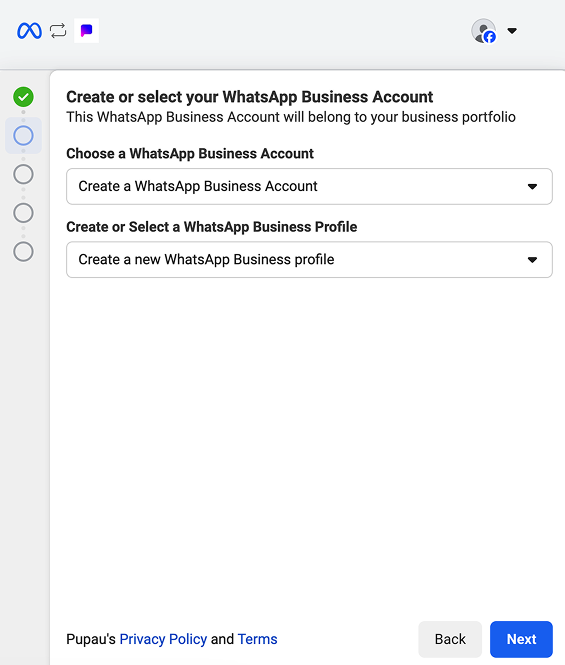
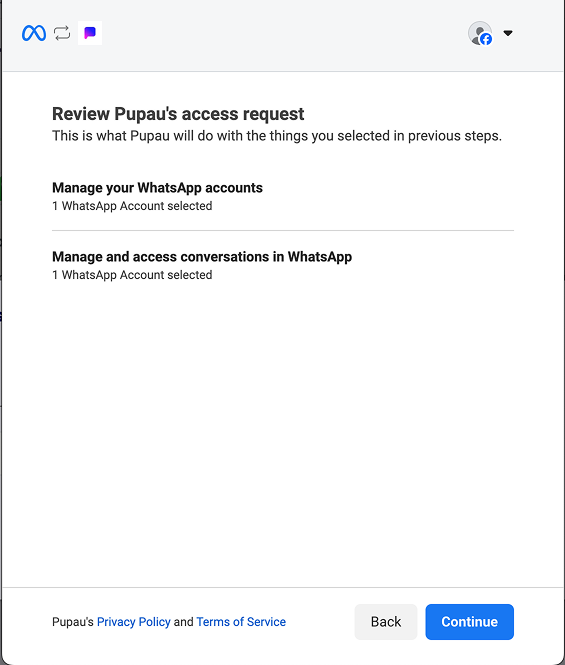
After setting up your account and reviewing Pupau's access request, click on "Continue".
This is the final step for your WhatsApp Business account configuration, you will need to click on the "Finish" button to complete the configuration. There is no need to add a payment method, this will not add any features to your assistant. The payment method is only required if your organization is going to initiate conversations with users.

After clicking on "Finish", you will see your new connector, and its information. To show the connector's details, click on it to navigate to the connector's details page.
You will also receive an email from Pupau AI with the PIN code associated with the phone number you added.
Now if a user contacts your business on WhatsApp, your assistant will be responding to them.
FAQ
How to access the WhatsApp Manager?
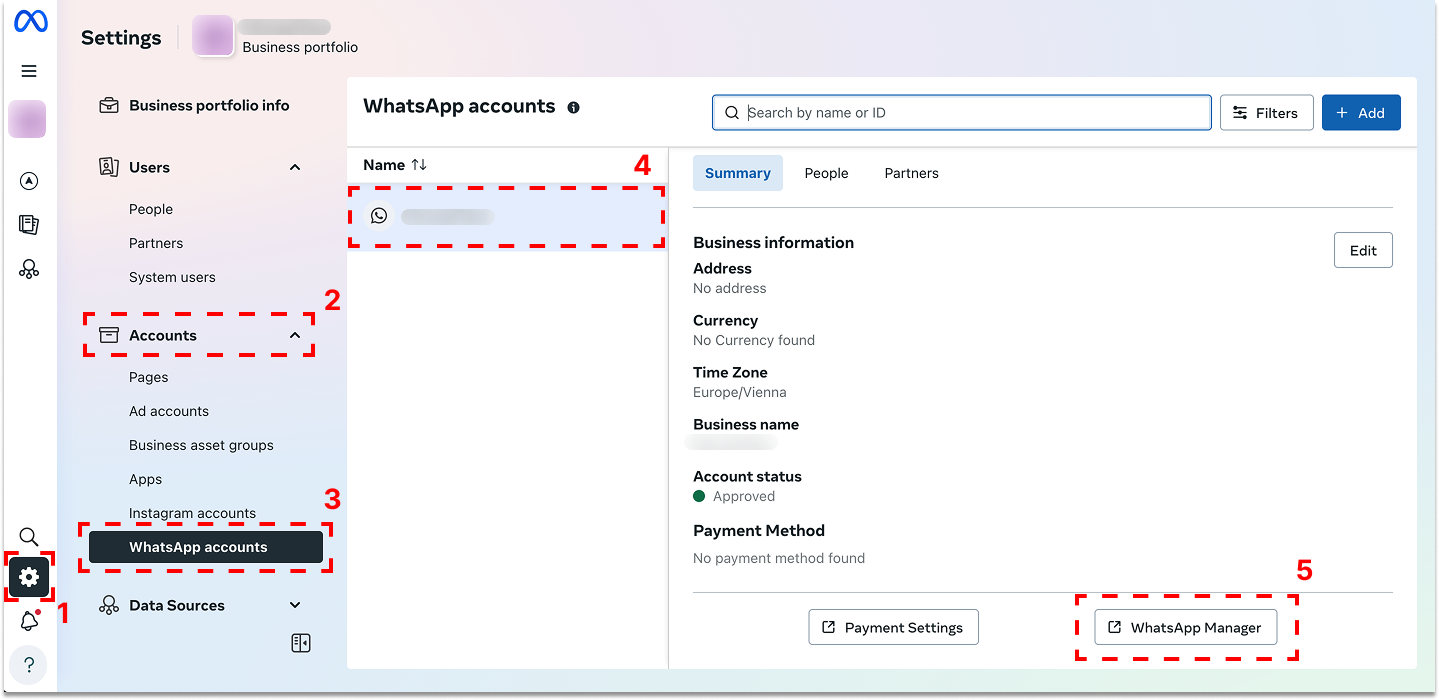
To access your WhatsApp Manager, go to your Meta Business Suite and select the settings tab in the left sidebar (1).
Then expand the Accounts section (2) and click on WhatsApp accounts in the second left sidebar (3).
After that, choose the desired WhatsApp Business account from the list (4) and in the bottom right corner click on the WhatsApp Manager button (5).
How to change profile picture, name and information?
To change the profile picture, name and information of your WhatsApp Business account go to your WhatsApp Manager.
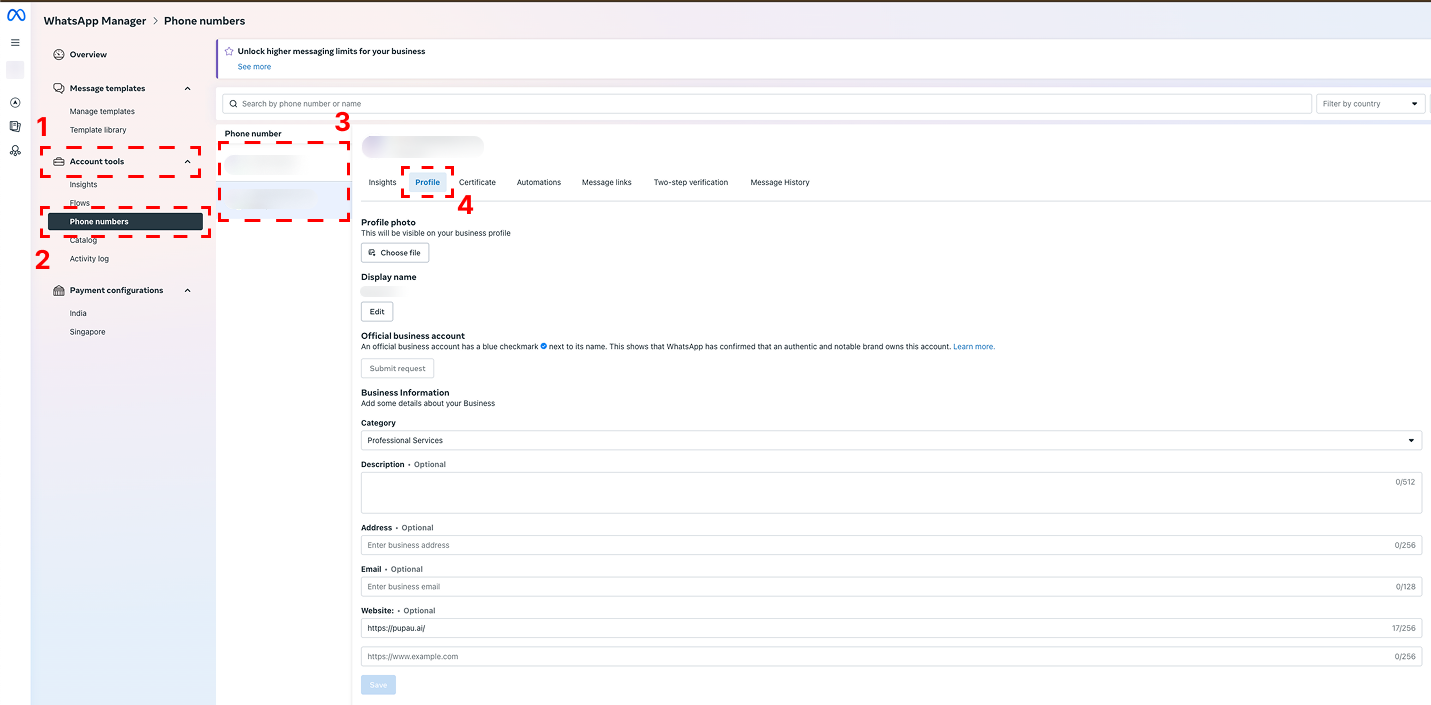
In the WhatsApp Manager, expand the Account tools section (1) and click on Phone numbers (2).
Here you will see the list of phone numbers associated with your business.
Choose the desired phone number from the list (3) and go to the Profile tab (4).
Here you will be able to change the profile picture, your display name and other information of your WhatsApp Business account.
How to change a business phone number PIN?
To change the PIN code of your WhatsApp Business phone number go to your WhatsApp Manager.
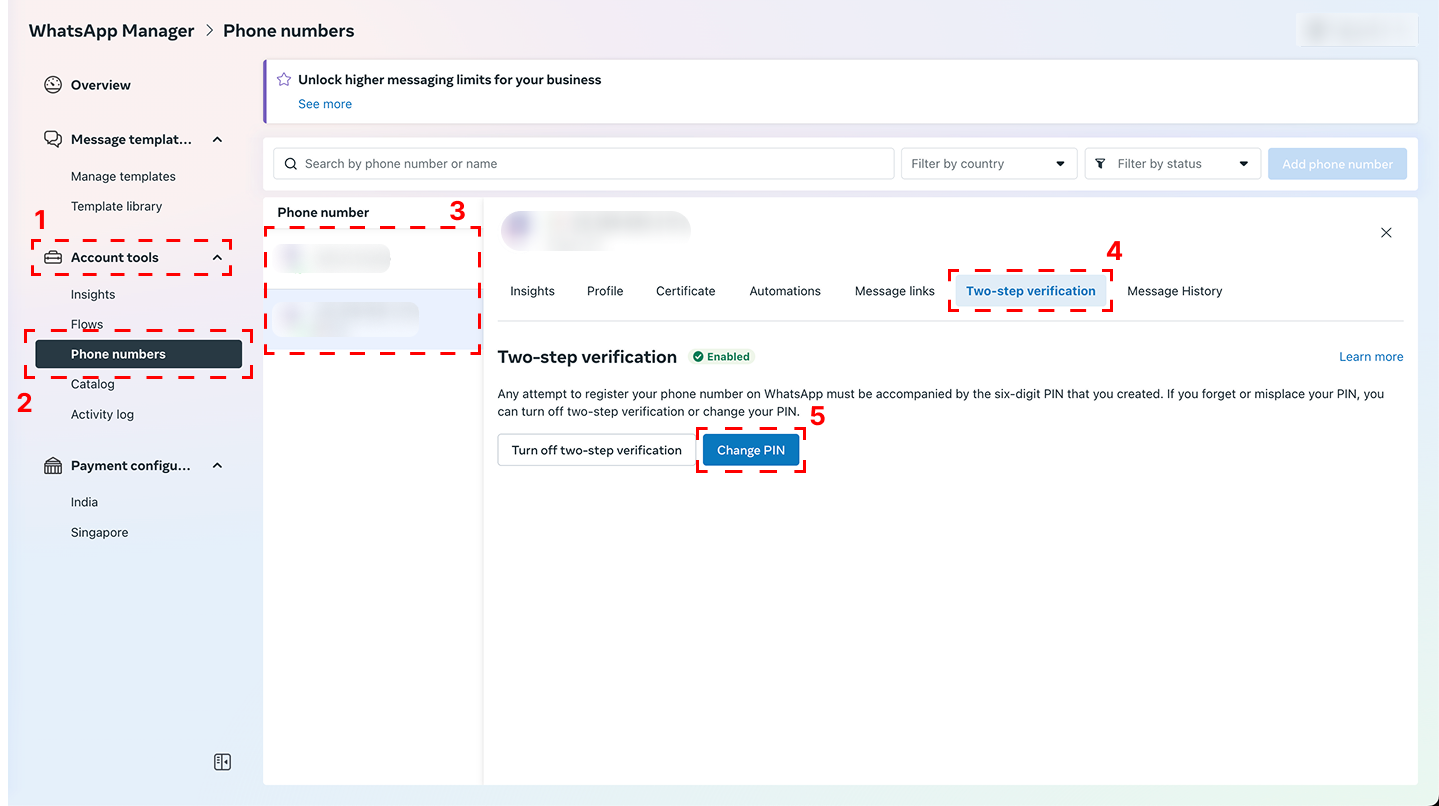
In the WhatsApp Manager, expand the Account tools section (1) and click on Phone numbers (2).
Here you will see the list of phone numbers associated with your business.
Choose the desired phone number from the list (3) and go to the Two-step verification tab (4).
To change your PIN code, click on the Change PIN button (5).
NOTE: The Pupau AI platform will not be notified of the PIN code change.
How to verify my email?
If there is a warning about the email not being verified, you can verify it by checking for a verification email in your inbox.
If you cannot find the verification email, you can click on the "Go to business information" link inside your WhatsApp Manager or you can go directly to your Meta Business Suite, then under settings and "Business portfolio info" Tab.
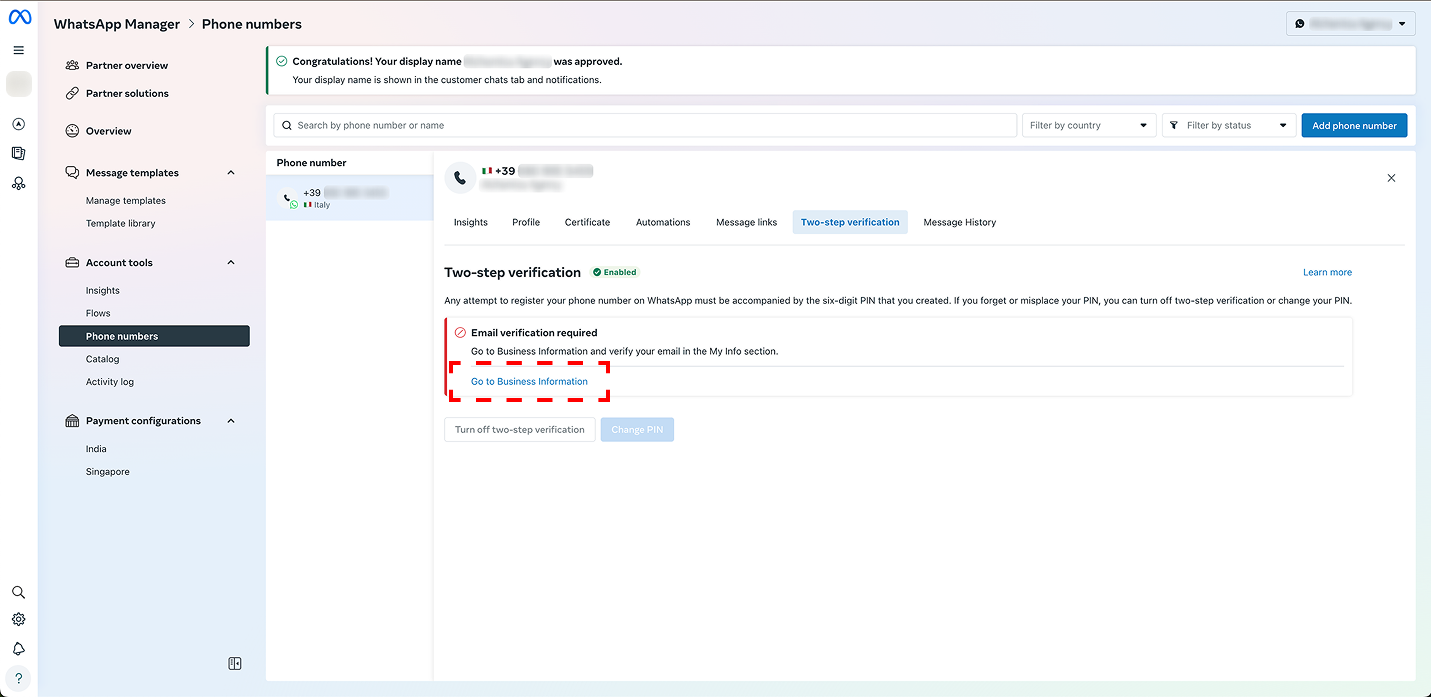
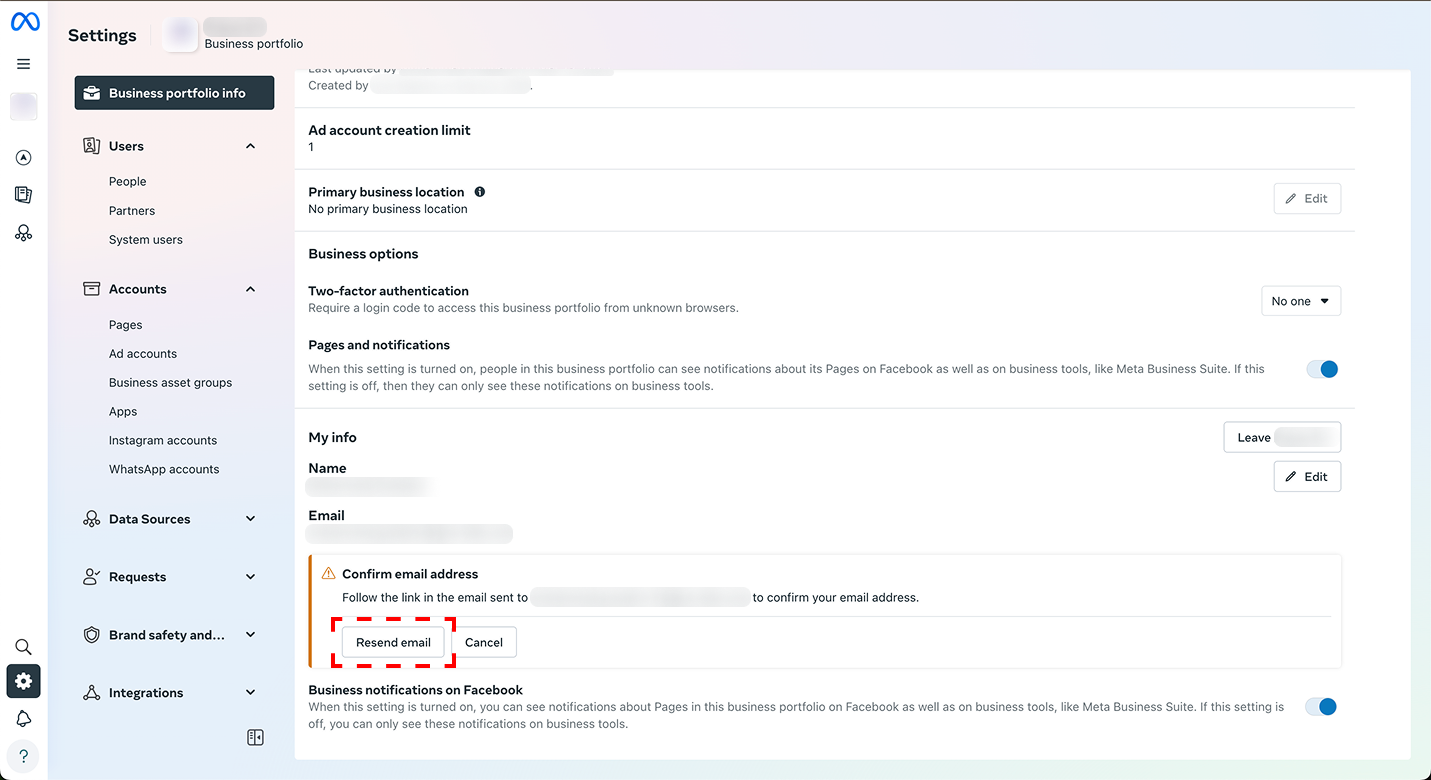
Here you will find a "Confirm email address" warning, with a Resend email button.