Clients and Integrations
Integrations - API Key
Here you can find and create the API keys for your integrations.
Click on the 'New API Key' button to create a new API key or select an existing one to view and manage its details.
If you need a guide for integrating the API key on your website, please check the Integrations Section page.
API Key Configuration
General Configuration
In the top-right corner of the page, there are the delete and edit buttons.
Afterward, there will be a 'Name' field where you can change the name of the API key, and then the API Key itself. The API Key is obscured by default, but you can click on the Eye icon to reveal it or copy it to the clipboard by clicking on the Copy icon.
You can also see the creation date of the API key.
Key Restrictions
In this section, you can set the restrictions for the API key. Restricting where and for which APIs this key can be used helps prevents unauthorized use.
This is the list of the available restrictions:
- None
- Websites
- IP Addresses
None
If you select this option, the API key will be unrestricted and can be used for all APIs.
Websites
Use a website to restrict the URLs that can use an API key.
To add a website click on the 'Add' button under the 'Websites restrictions' section.
To remove a website, select the website from the websites list and click on the 'Delete' button that will appear next to the 'Add' button.
Here are some examples of URLs that you can allow setting up a website:
- Any URL in a single domain with no subdomains:
https://example.com - Any URL in a single subdomain:
https://sub.example.com - Any subdomain in a single domain, using a wildcard asterisk (*):
https://*.example.com - A domain and all its subdomains, using a wildcard asterisk (*):
https://example.comhttps://*.example.com
- A URL with a non-standard port:
http://www.example.com:8000
Note: query parameters and fragments are not currently supported; they will be ignored if you include them in a website.
⚠️ DANGER: if you choose this option and you won't set any website, the API key will accept requests from any website.
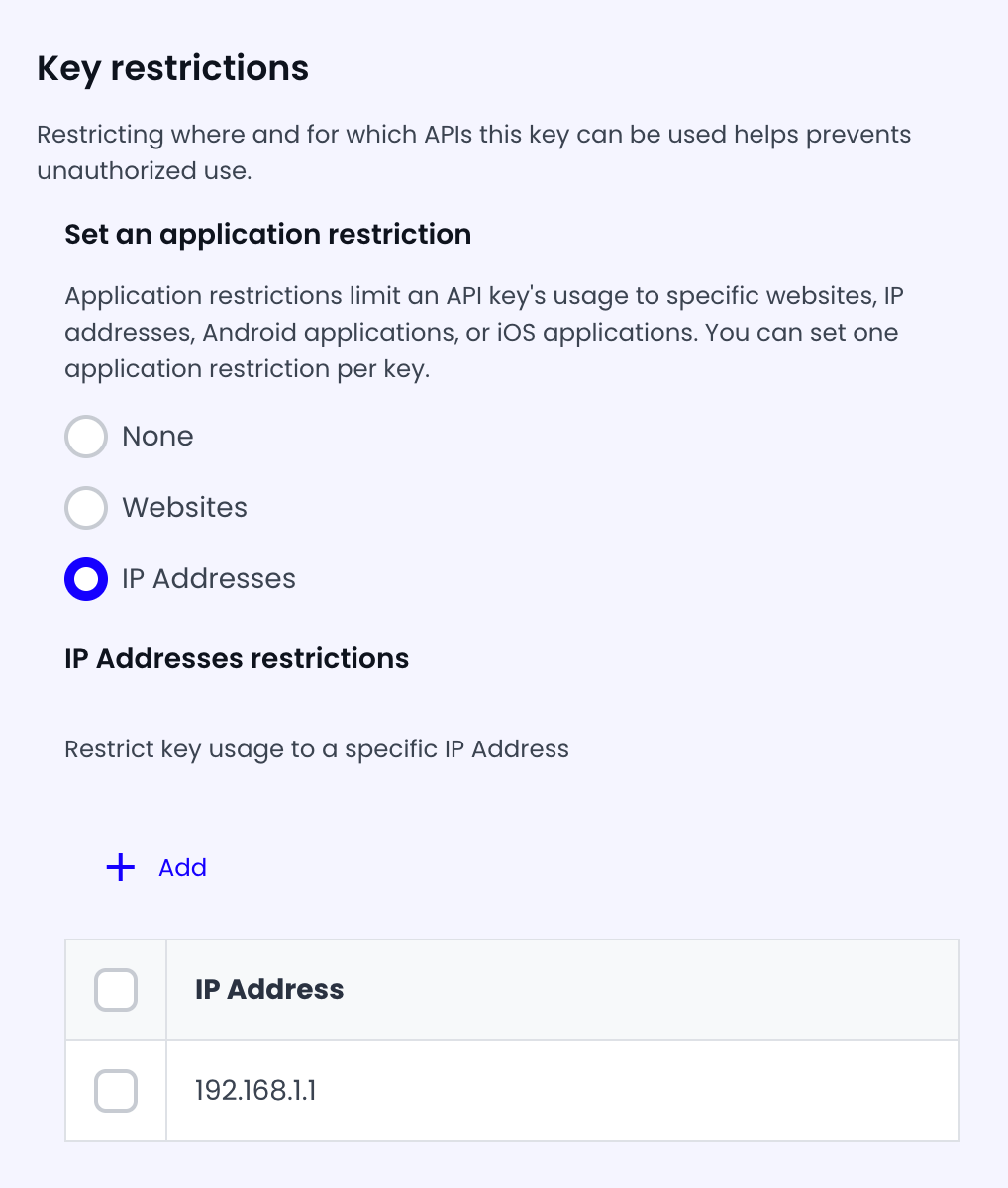
IP Addresses
If you select this option, the API key will be restricted to the specified IP addresses.
To add an IP address click on the 'Add' button under the 'IP Addresses restrictions' section.
To remove an IP address, select the IP address from the IP addresses list and click on the 'Delete' button that will appear next to the 'Add' button.
UI Options
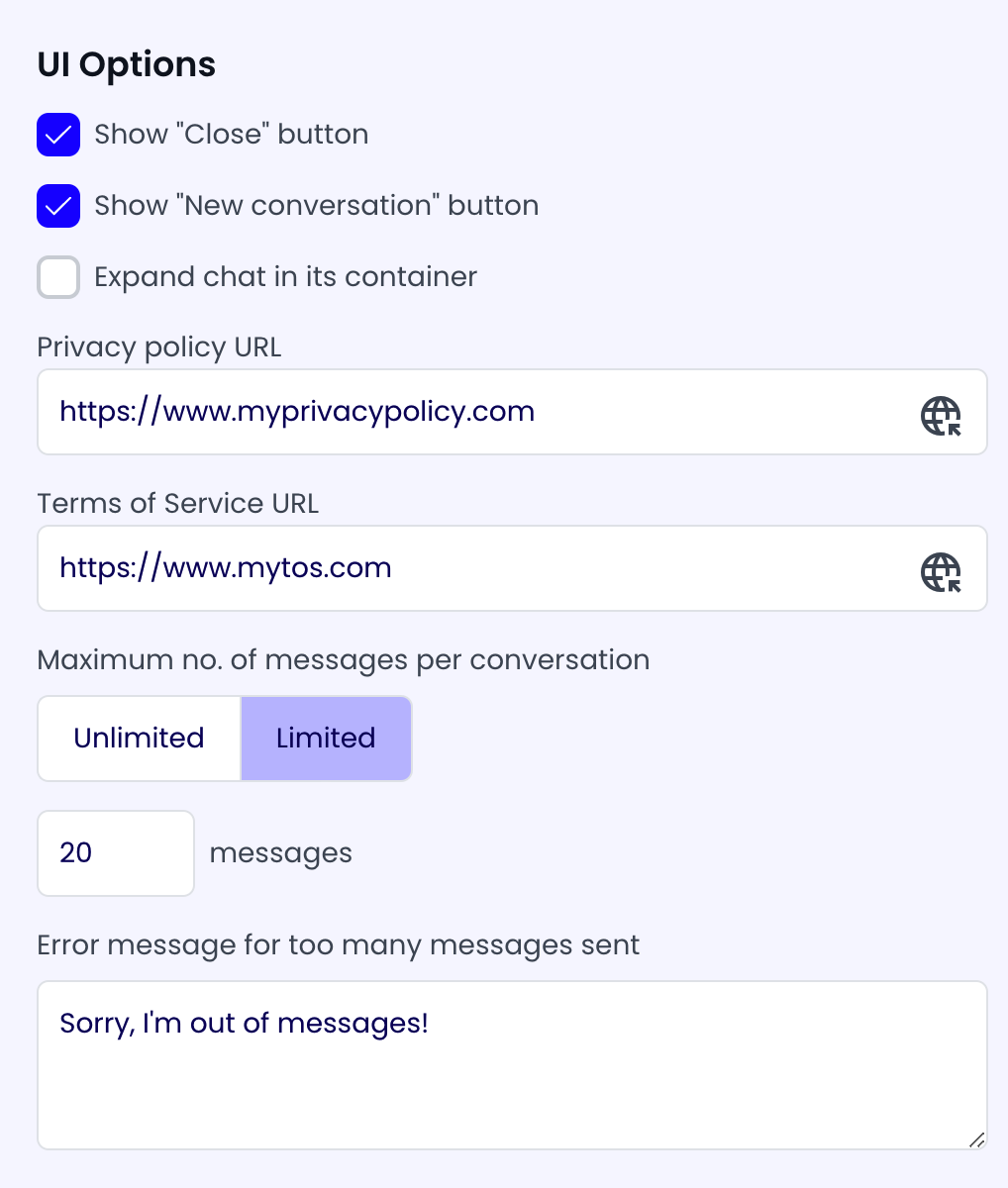
In these section you can configure the UI options for the web component.
These are the available options:
- Show "Close" button (true/false)
- Show "New conversation" button (true/false)
- Expand chat in its container (true/false)
- Privacy policy URL
- Terms of service URL
- Maximum number of messages per conversation ("Unlimited" or "Limited")
If you select "Limited" for the "Maximum number of messages per conversation", you will be able to set the maximum number of messages per conversation and the error message that will be shown to the user when the maximum number of messages is reached.
Web Component Opening Button
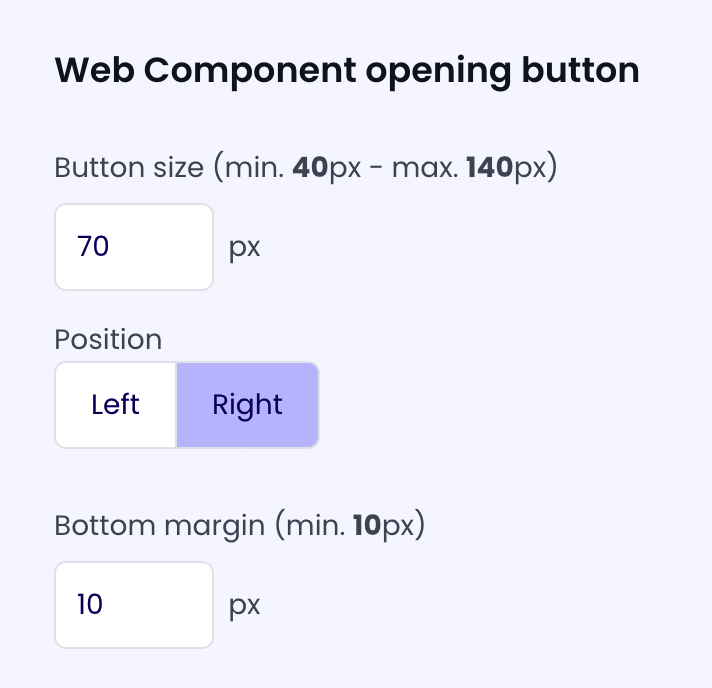
In this section you can configure the opening button for the web component.
These are the available options:
- Button size: choose the size of the circular assistant button (min 40px, max 140px, default 70px)
- Position: choose if the button will be on the bottom left or bottom right side of the screen ("Left" or "Right")
- Bottom margin: choose the margin from the bottom of the screen (min 10px, default 10px)
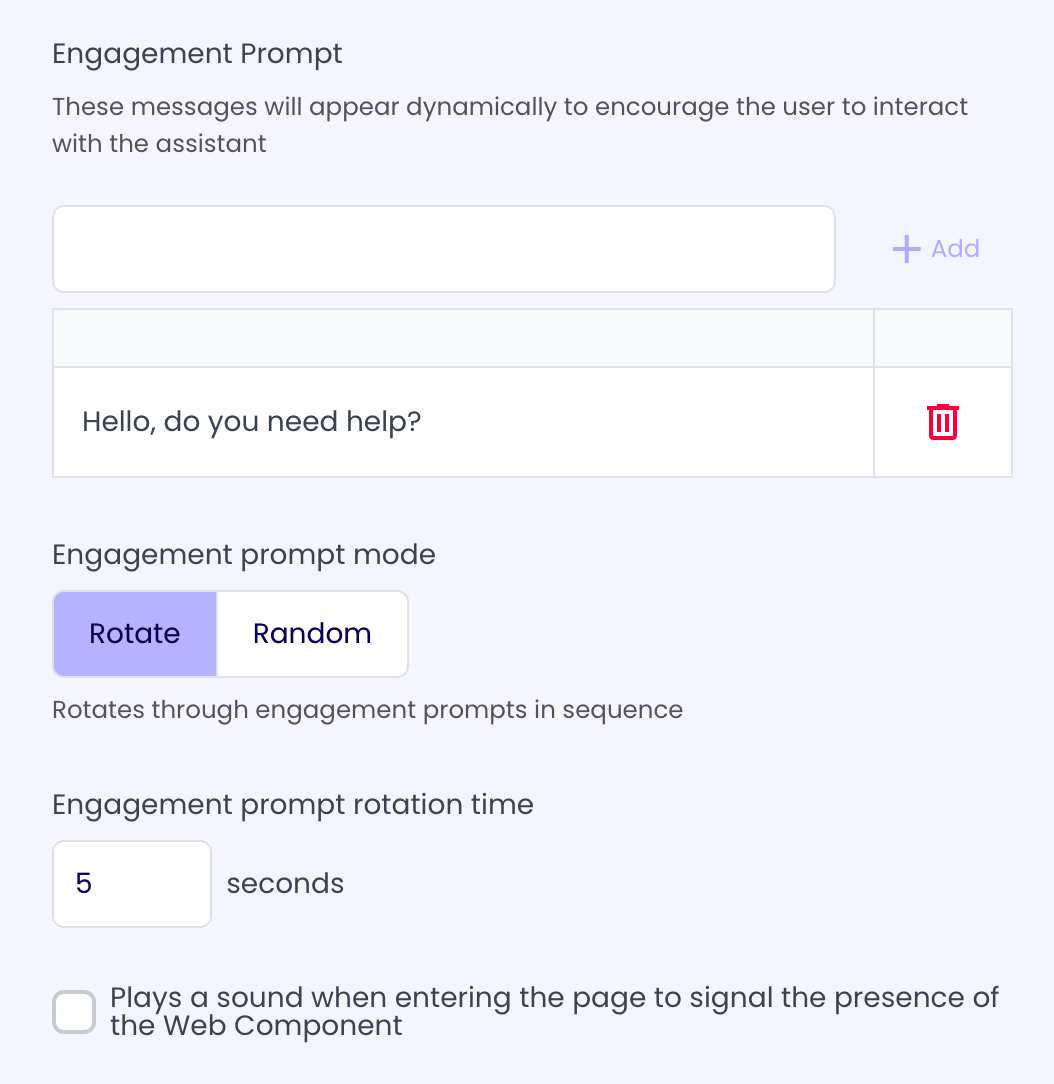
- Engagement Prompt: messages that will be shown to the user to encourage them to click the button
- Engagement Prompt Mode: choose if the engagement prompts will rotate or (if there are multiple prompts) show one at random, if "Rotate" is selected, you can also choose the time between each prompt (default 5s)
- Plays a sound when entering the page to signal the presence of the Web Component (true/false)
Engagement Prompt
To add an engagement prompt, write the message prompt in the input below the 'Engagement Prompt' section and then click on the 'Add' button next to the input.
To remove an engagement prompt, click on the 'Trash' button next to the prompt.