Example: Email Rewriter
In this guide, we'll create a pipeline that rewrites an email with a new tone and resolve problems. We will use two actors, the first one will analyze the email and the second one will rewrite it.
Email Analysis Layer
Click on the 'Add Layer' button, name it (for example: "Email Analysis Layer"), and click 'Save'.
Afterward, click on the 'Add Actor' button and select the 'LLM' actor.
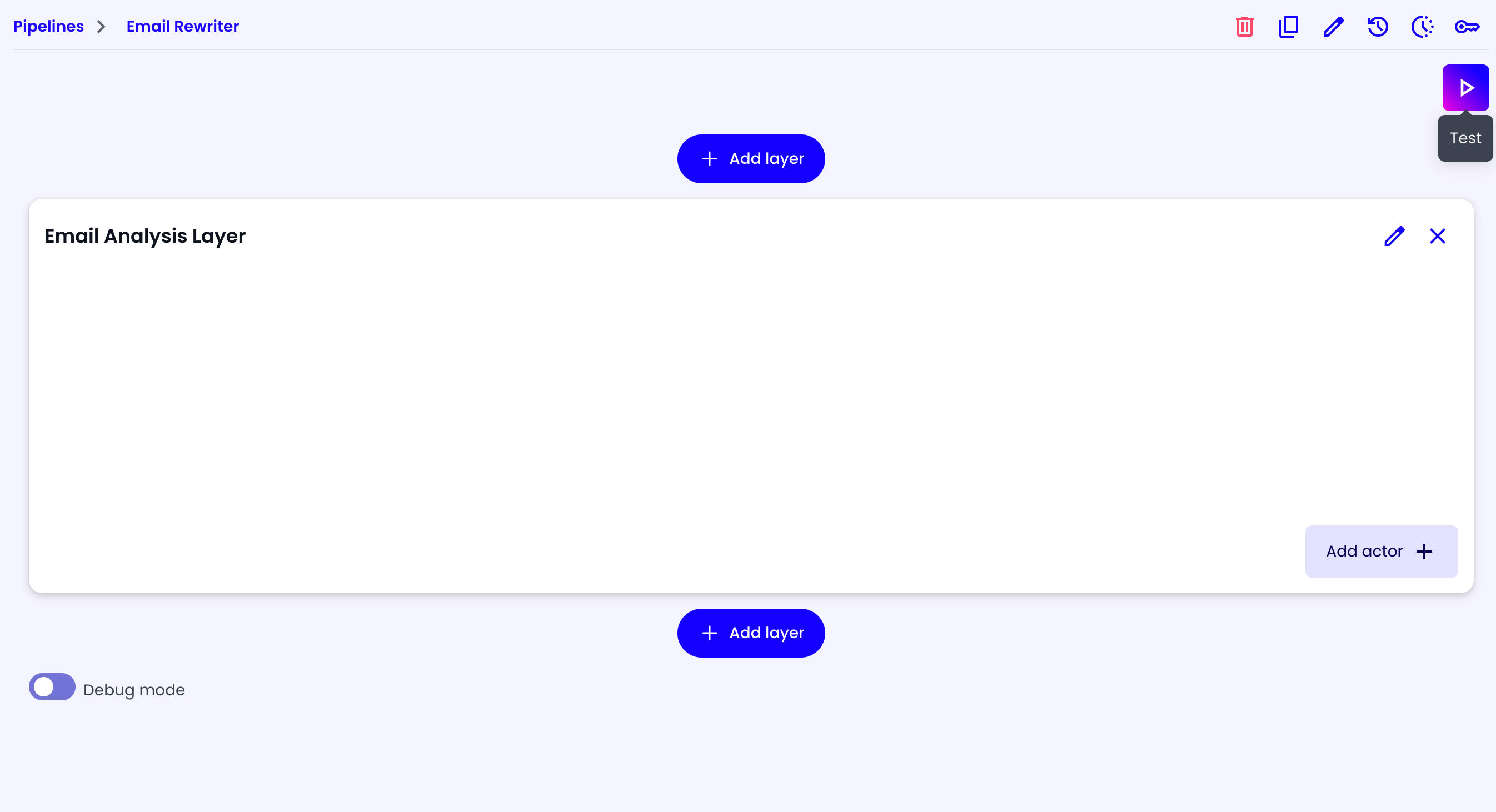
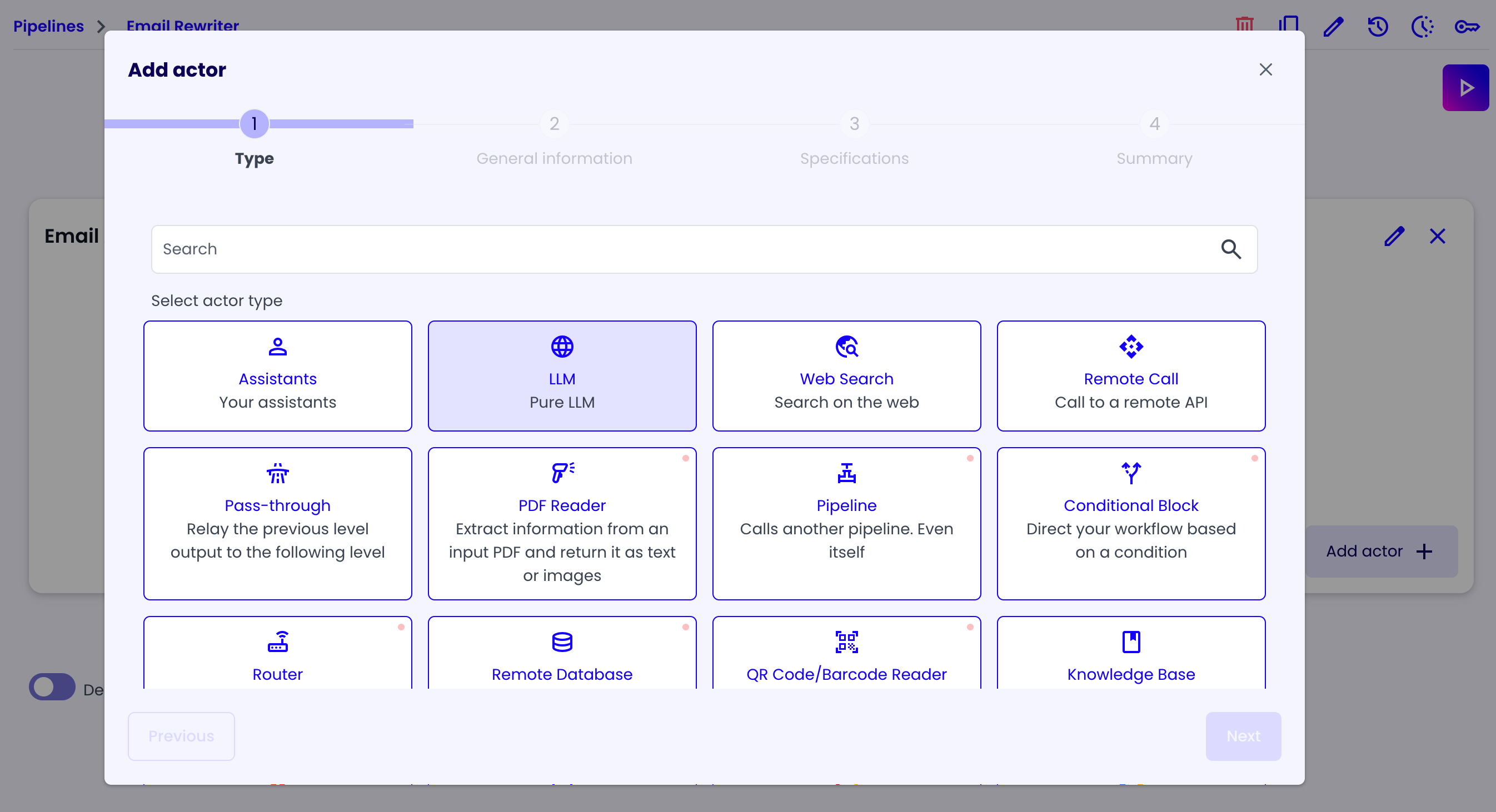
Now a new dialog will appear, where you can configure the LLM actor.
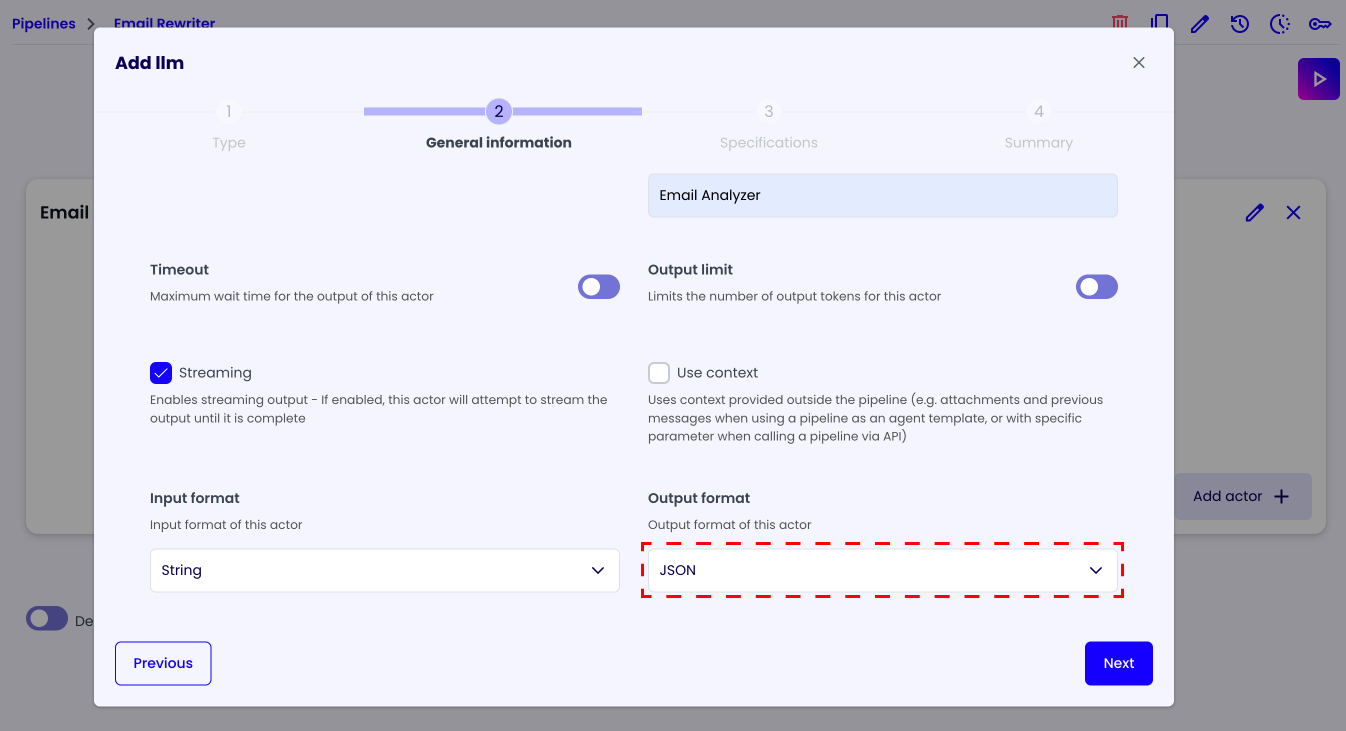
In the "General Information" tab, give the actor a name (for example: "Email Analyzer").
For this example, we'll set the output format to "JSON" (this will be explained later)
After configuring the "General Information" click the 'Next' button to go to the "Specifications" tab.
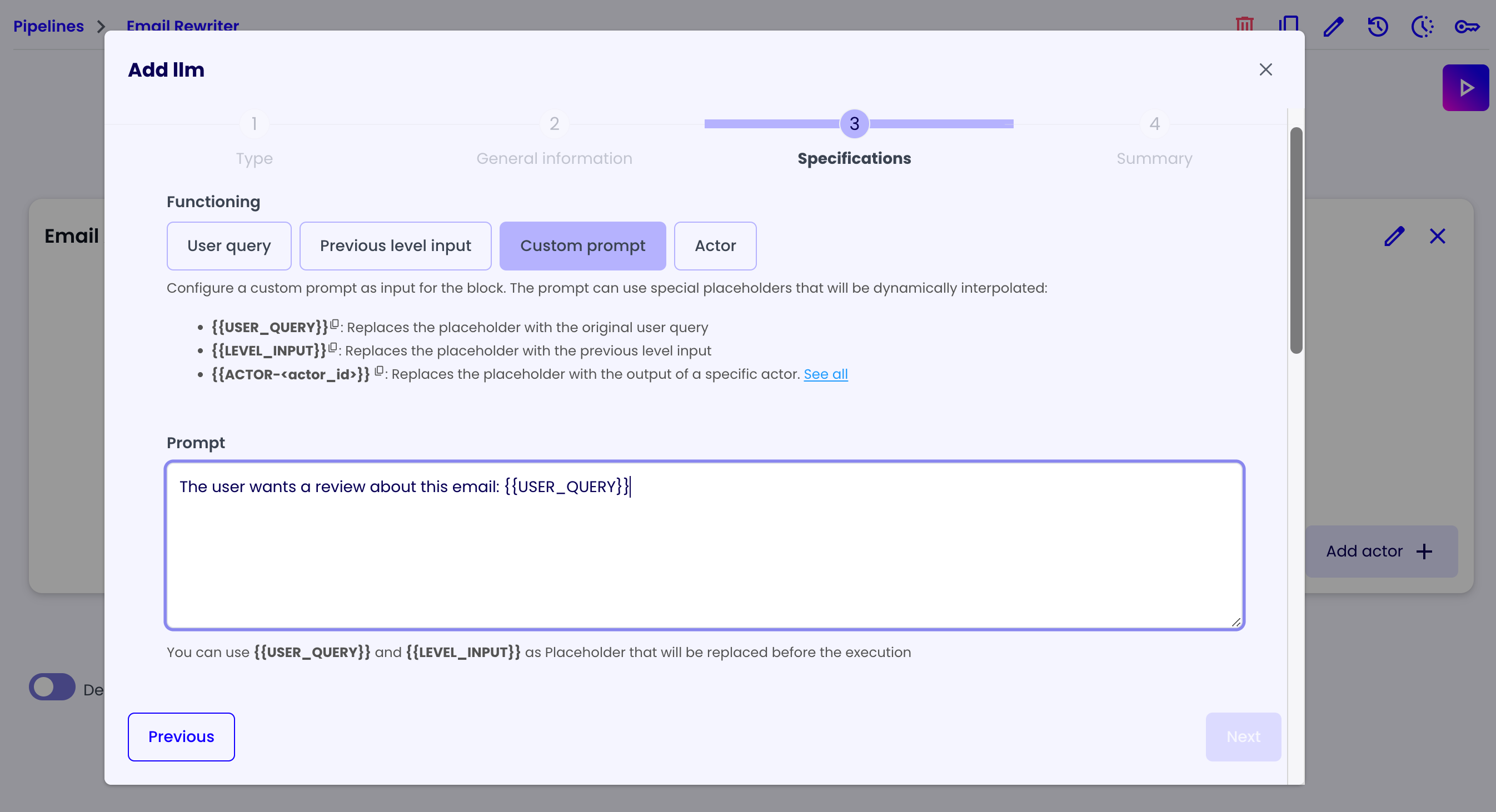
In the "Specifications" tab we can configure the actor's behavior using Prompt Engineering. In the "Prompt" field, we'll write the prompt that will be used to analyze the email. For this example, we'll write the following prompt:
The user wants a review about this email: {{USER_QUERY}}
Here we are using a variable. There are three variables that you can use:
{{USER_QUERY}}: Replaces the placeholder with the user's query.{{LEVEL_INPUT}}: Replaces the placeholder with the previous level input.{{ACTOR-<actor_id>}}: Replaces the placeholder with the output of a specific actor.
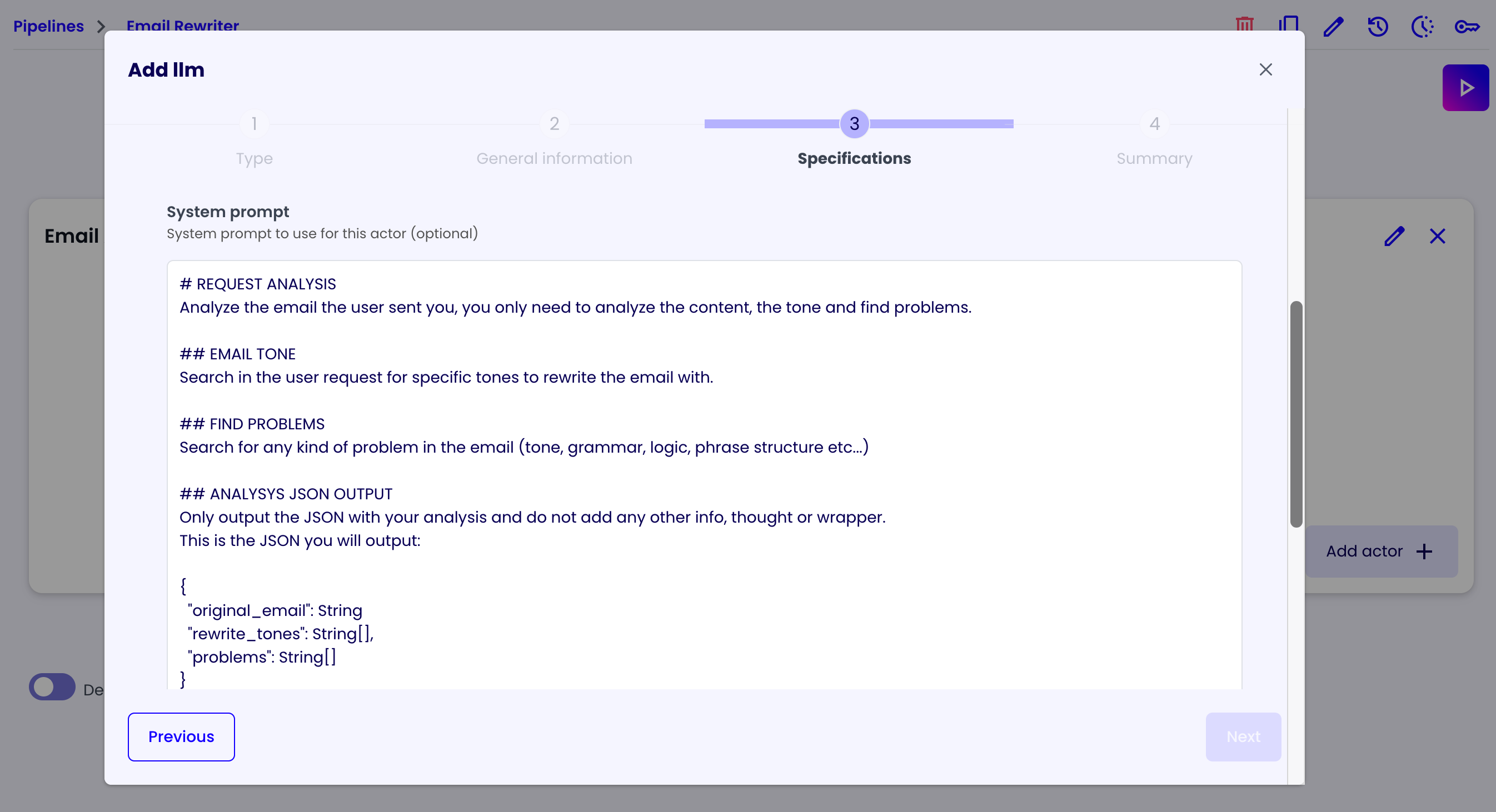
In the "System Prompt" field, we'll write in detail the behavior of the actor. For this example, we'll write the following system prompt:
# REQUEST ANALYSIS
Analyze the email the user sent you, you only need to analyze the content, the tone and find problems.

## EMAIL TONE
Search in the user request for specific tones to rewrite the email with.

## FIND PROBLEMS
Search for any kind of problem in the email (tone, grammar, logic, phrase structure etc...)

## ANALYSIS JSON OUTPUT
Only output the JSON with your analysis and do not add any other info, thought or wrapper.
This is the JSON you will output:

{
  "original_email": String
  "rewrite_tones": String[],
  "problems": String[]
}

original_email: the email written by the user.
rewrite_tones: a list of tones to use to rewrite the email (Example: ["SERIOUS", "URGENT"] or ["INFORMAL", "FUNNY"]).
problems: a list of problems found in the original email.
As you can see, in the system prompt we specified to the actor to output a JSON, this is why in the previous step we set the output format to "JSON". The reason we made this choice is to provide a structured output to the next actor.
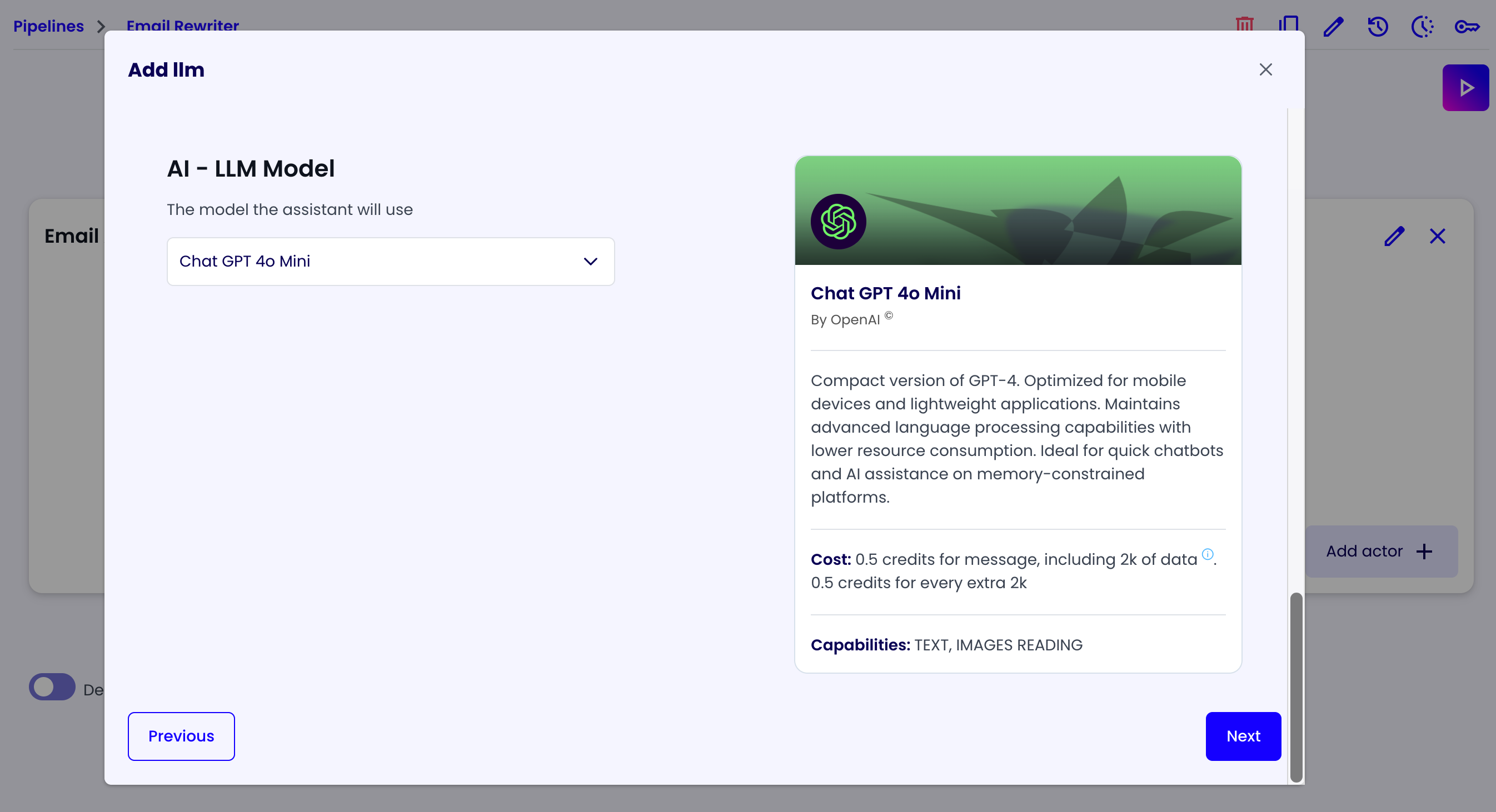
At last, we'll have to choose a model for the actor. For this example, we'll choose the "GPT-4o Mini" model, which is a quicker and cheaper model than the "GPT-4o", good for small and simple tasks. After choosing the model, click the 'Next' button to go to the "Summary" tab.
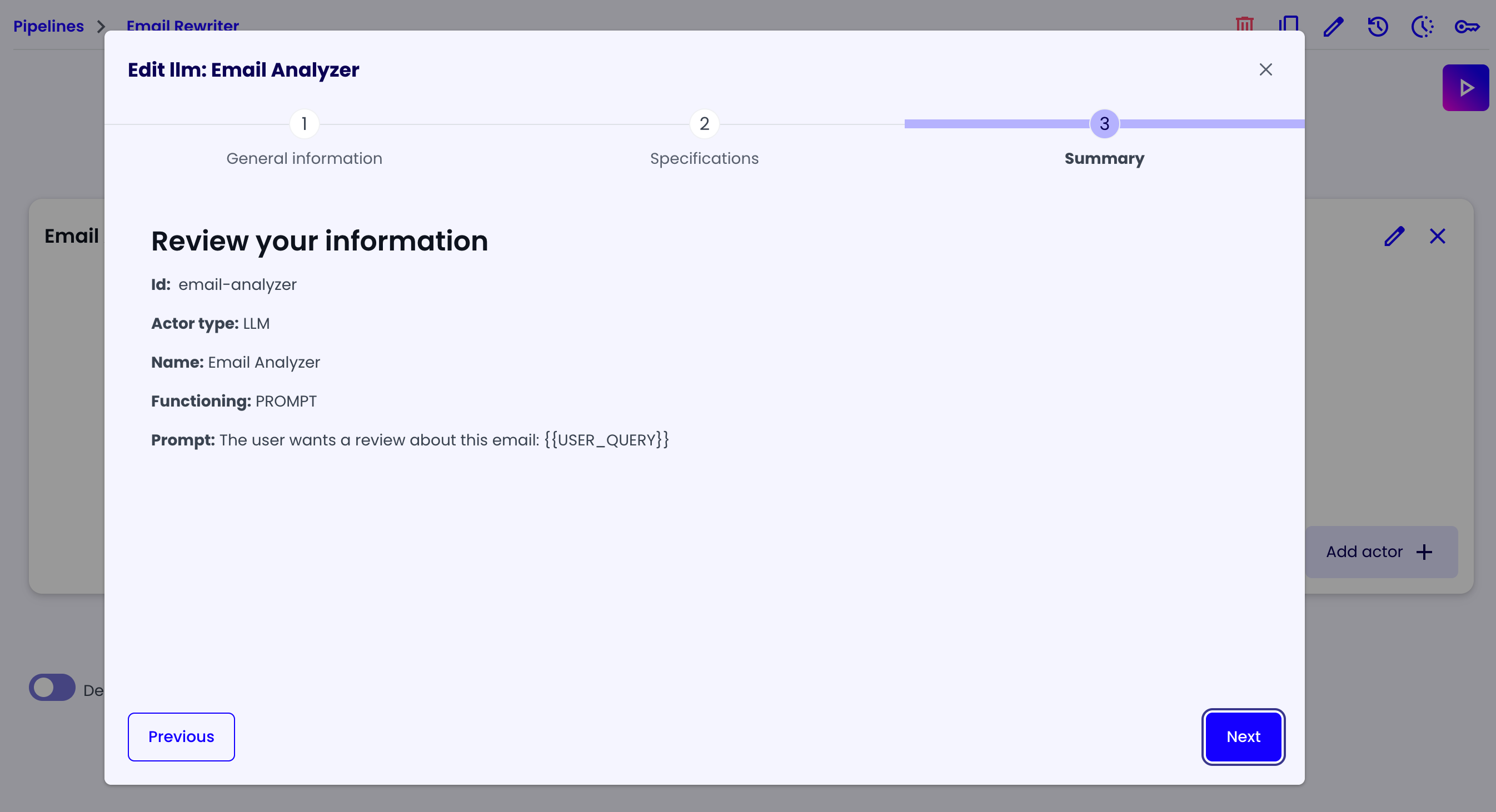
In the "Summary" tab, you can review the actor's configuration and useful information like the actor's id. Click the 'Next' button to save the actor configuration.
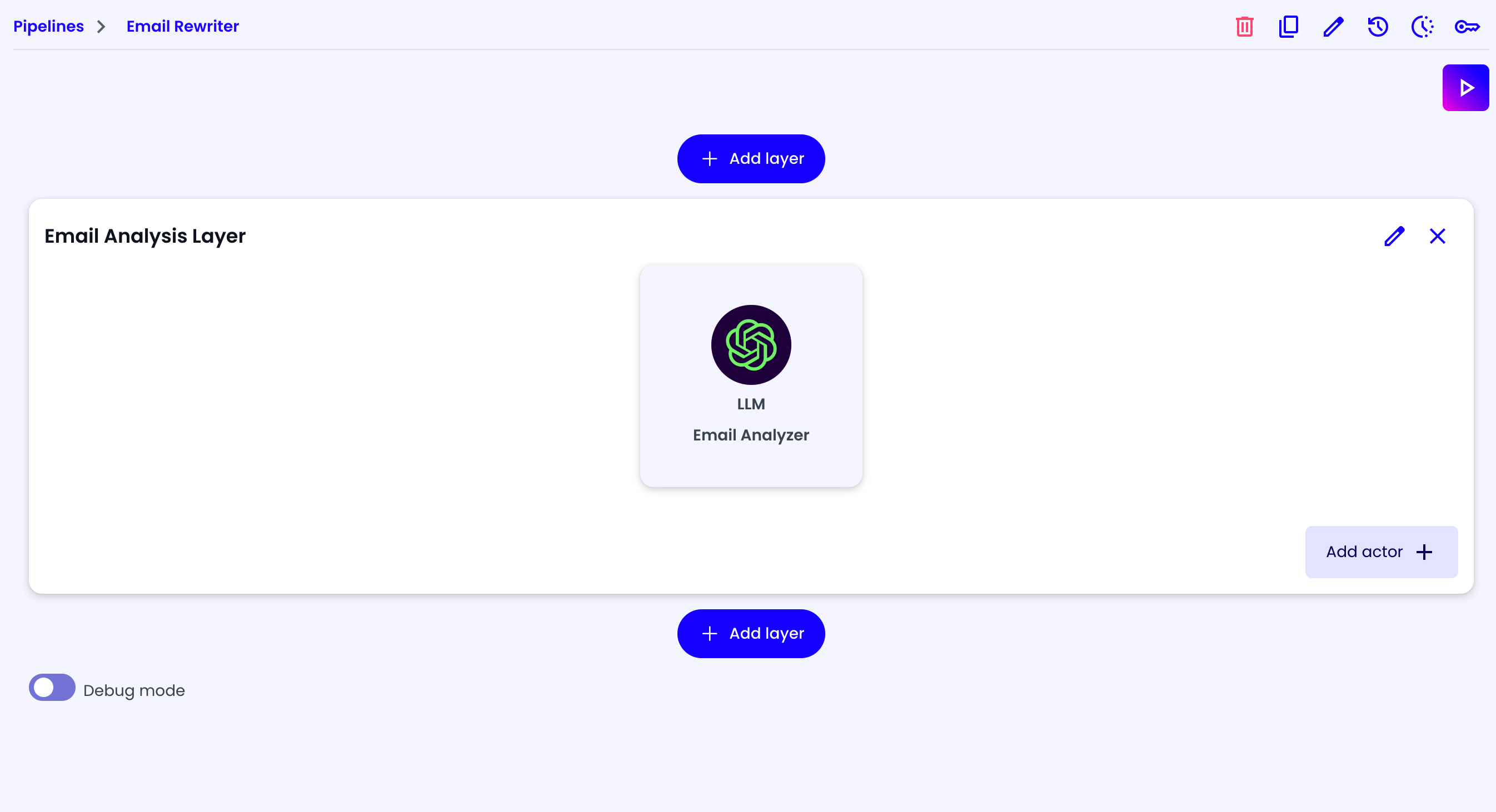
Now you can see the "Email Analyzer" actor inside the "Email Analysis Layer".
Email Rewriting Layer
Like before, let's add a new layer and add a new LLM actor. (for example: "Email Rewriting Layer" and "Email Rewriter").
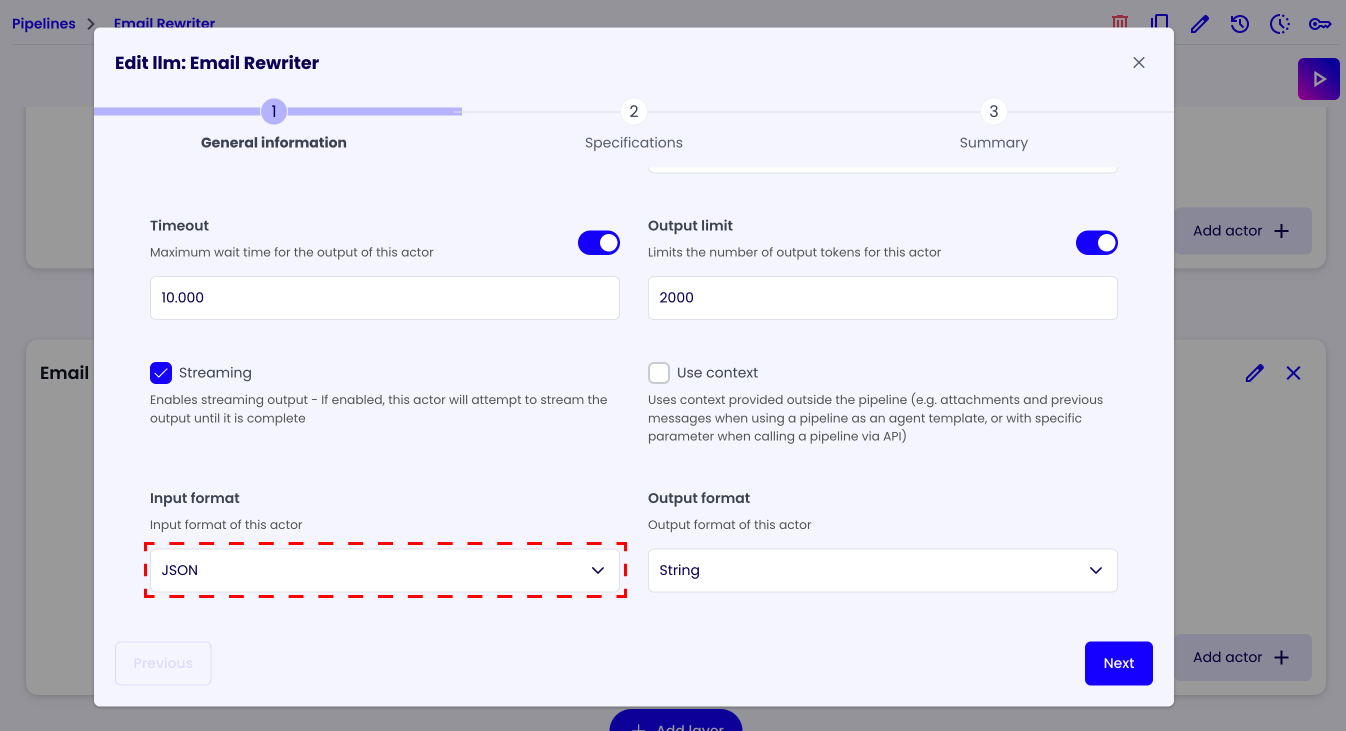
This time we'll change the Input format to "JSON", because the previous actor outputs a JSON.
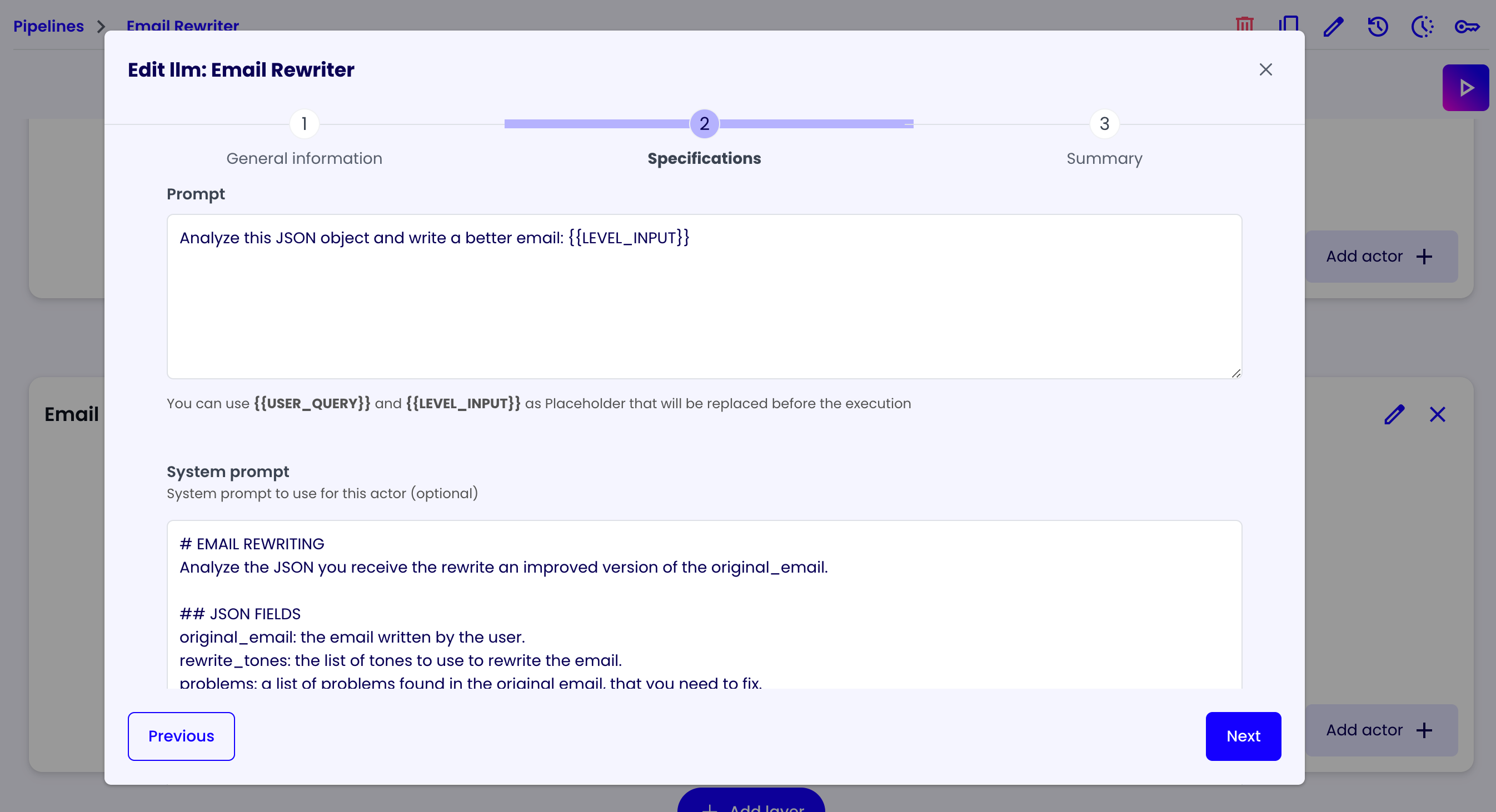
For the "Specifications" tab, we'll write the following prompt:
Analyze this JSON object and write a better email: {{LEVEL_INPUT}}
And the following system prompt:
# EMAIL REWRITING
Analyze the JSON you receive the rewrite an improved version of the original_email.

## JSON FIELDS
original_email: the email written by the user.
rewrite_tones: the list of tones to use to rewrite the email.
problems: a list of problems found in the original email, that you need to fix.

## REWRITE GUIDE
Rewrite the original_email using the desired rewrite_tones and fix all the problems reported.

## OUTPUT EMAIL
Output only the improved rewritten email without any other context, wrapper, thought or extra info.
For the model, once again we'll choose the "GPT-4o Mini" model.
Testing the Pipeline
Now everything is ready, we just need to press the Play button at the top-right corner of the page to run our pipeline. Afterward will appear an input field where you can write the email you want to rewrite (your user query).

After writing your query and pressing the Test button, the pipeline will start running and you'll see the output at the end of the screen.
